
How to Speed Up a WordPress Website: A Complete Guide for Beginners
If you have ever wondered how to speed up a WordPress website, you are not alone. Website speed is one of the most important factors that determines whether visitors stay on your site, whether search engines rank you favorably, and whether your business converts visitors into customers. A slow WordPress website can quietly undo months of hard work on content, design, and marketing. The good news is that speeding up WordPress is a solvable problem, and in this guide, we will walk through every practical method you can use, step by step, to make your site faster and keep it that way.
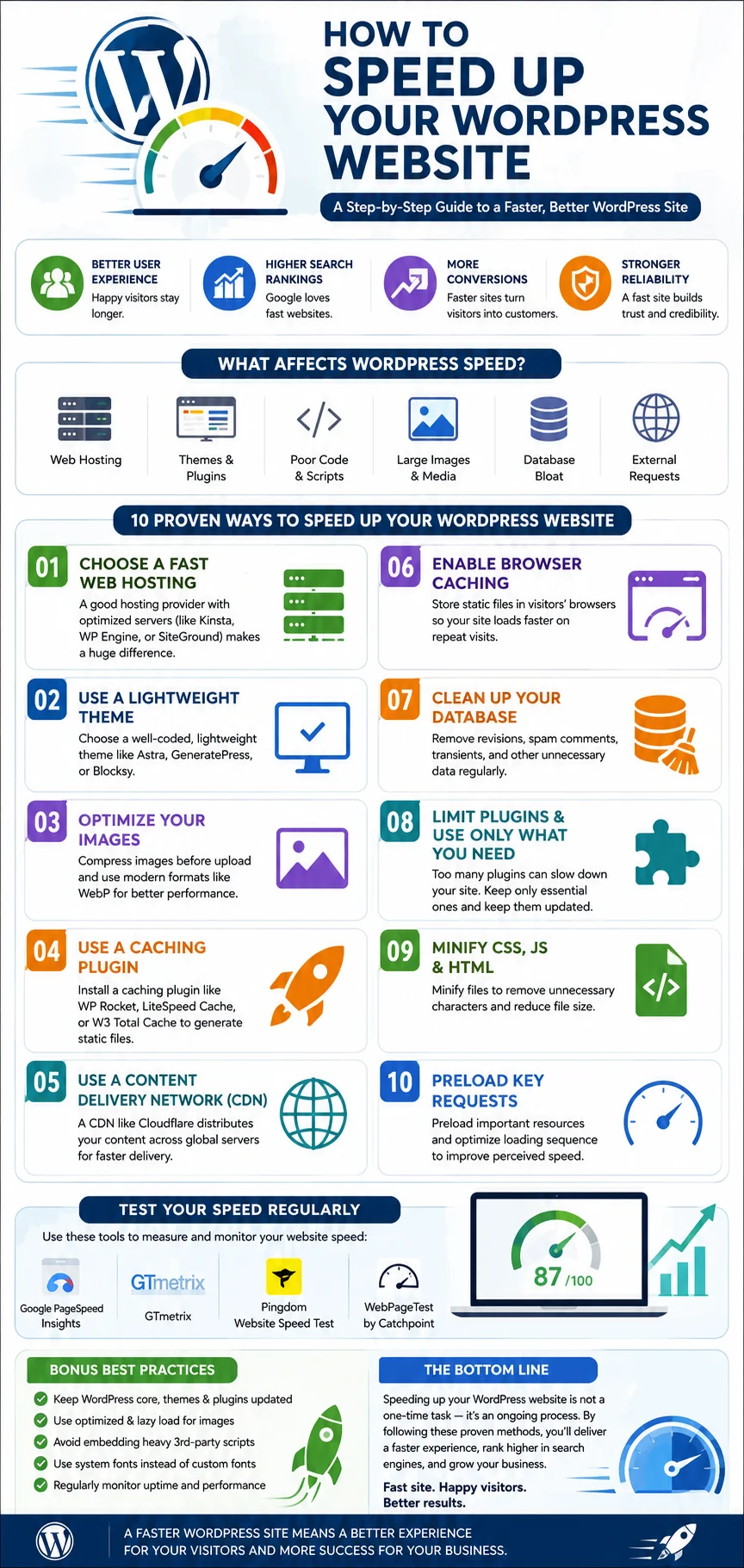
WordPress powers a huge share of the websites on the internet today, and its flexibility is exactly why performance issues creep in so easily. Every theme, plugin, and third-party script you add has the potential to slow things down. But once you understand what actually affects speed and how to address it methodically, you can turn a sluggish site into a fast, responsive one that both users and search engines love.
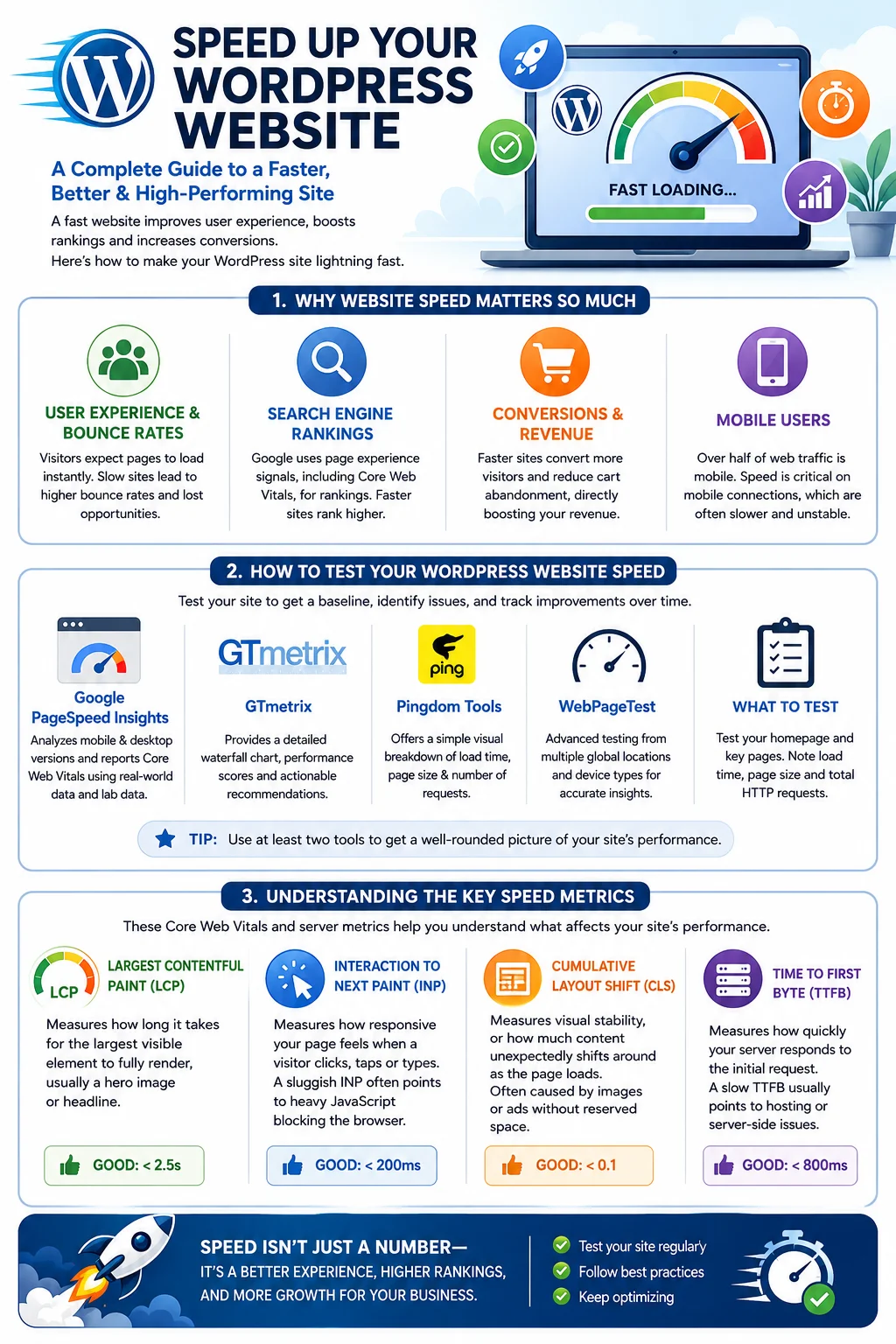
Why Website Speed Matters So Much
Before diving into the technical fixes, it helps to understand why speed deserves your attention in the first place.
User Experience and Bounce Rates
Visitors expect pages to load almost instantly. Research on user behavior consistently shows that as page load time increases, the likelihood of a visitor abandoning the page increases sharply. Every extra second of loading time chips away at your audience’s patience, and many of them will simply click the back button and choose a competitor instead. A fast website keeps people engaged, encourages them to browse more pages, and reduces the number of visitors who leave without taking any action.
Search Engine Rankings
Search engines, including Google, use page experience signals as part of their ranking algorithms. Core Web Vitals, which measure loading performance, interactivity, and visual stability, are now a recognized part of how search engines evaluate the quality of a page. A slow WordPress website is at a real disadvantage in search results compared to faster competitors covering the same topics. If you are investing time in content and keyword research, pairing that effort with a fast-loading site multiplies your chances of ranking well.
Conversions and Revenue
For online stores, service businesses, and lead-generation sites, speed is directly tied to revenue. Studies from major e-commerce platforms have repeatedly found that faster load times correlate with higher conversion rates and lower cart abandonment. Whether your goal is selling products, collecting email sign-ups, or booking consultations, a faster website removes friction from the path between a visitor arriving and taking action.
Mobile Users
More than half of global web traffic now comes from mobile devices, often over inconsistent networks. Mobile users are especially sensitive to slow-loading pages because they may be on cellular data with limited speed and higher latency. Optimizing your WordPress website for speed is, in many cases, really about optimizing it for mobile users first.
How to Test Your WordPress Website Speed
You cannot improve what you do not measure. Before making any changes, run your website through a few different speed testing tools so you have a clear baseline and can track improvements as you apply fixes.
Google PageSpeed Insights analyzes both mobile and desktop versions of your page and reports on Core Web Vitals using real-world field data when available, along with lab data from a simulated test.
GTmetrix provides a detailed waterfall chart showing exactly which resources are slowing down your page, along with a performance score and actionable recommendations.
Pingdom Tools offers a simple, visual breakdown of load time, page size, and the number of requests, which is useful for quickly spotting bloated pages.
WebPageTest is a more advanced tool that lets you test from multiple global locations and device types, which is especially useful if your audience is spread across different regions.
Run your homepage and a couple of your most important content pages through at least two of these tools. Note your current load time, total page size, and number of HTTP requests. These numbers will be your benchmark as you work through the optimizations below.
Understanding the Key Speed Metrics
To speed up a WordPress website effectively, it helps to understand what the major performance metrics actually measure.
Largest Contentful Paint (LCP) measures how long it takes for the largest visible element on the page, usually a hero image or headline, to fully render. A good LCP score is under 2.5 seconds.
Interaction to Next Paint (INP) measures how responsive your page feels when a visitor clicks, taps, or types. A sluggish INP often points to heavy JavaScript execution blocking the browser.
Cumulative Layout Shift (CLS) measures visual stability, or how much content unexpectedly shifts around as the page loads. This often happens when images or ads load without reserved space, pushing text down after a visitor has already started reading.
Time to First Byte (TTFB) measures how quickly your server responds to the initial request. A slow TTFB usually points to hosting or server-side issues rather than front-end problems.
Keeping these four metrics in mind will help you prioritize which fixes matter most for your specific site.
1. Choose Quality WordPress Hosting
Hosting is the foundation of your website‘s speed, and no amount of caching or optimization can fully compensate for a server that is fundamentally underpowered or overcrowded. If you are on a cheap, shared hosting plan where your site shares server resources with hundreds of other websites, you will hit a performance ceiling no matter what else you do.
Consider upgrading to hosting that is specifically optimized for WordPress, often called managed WordPress hosting. These providers typically include server-level caching, automatic updates, built-in content delivery networks, and support staff who understand WordPress-specific issues. If a fully managed plan is not in your budget, at minimum look for a host that uses modern server technology, offers solid-state drives, and has a reputation for fast response times.
Signs that your hosting might be holding your site back include a consistently slow Time to First Byte, frequent downtime, or noticeably worse performance during traffic spikes. If you suspect hosting is your bottleneck, testing your site with a temporary staging environment on a different host can help confirm the issue before you commit to switching.
2. Use a Lightweight, Well-Coded Theme
Not all WordPress themes are created equal. Many popular themes, especially multipurpose ones packed with page builders, sliders, and countless customization options, load a large amount of CSS and JavaScript even for features you never use. This bloat adds up quickly and slows down every single page on your site.
Look for themes that are described as lightweight or performance-focused. These themes tend to have minimal built-in styling, rely on efficient code, and avoid loading unnecessary scripts. Popular examples of lean, well-regarded themes include GeneratePress, Astra, and Kadence, all of which are known for strong performance scores out of the box.
If you are attached to your current theme but suspect it is heavy, try temporarily switching to a default WordPress theme and running a speed test. If your scores improve dramatically, that is a strong signal that your theme is a major contributor to your slow load times.
3. Install a Reliable Caching Plugin
Caching is one of the single most effective ways to speed up a WordPress website. By default, WordPress generates each page dynamically by querying the database and assembling the page from PHP code every time someone visits. This is resource-intensive and slow. Caching solves this by creating a static, pre-built version of your pages that can be served instantly without repeating all that work.
Popular caching plugins include WP Rocket, W3 Total Cache, WP Super Cache, and LiteSpeed Cache if your host runs LiteSpeed servers. These plugins typically offer:
- Page caching, which stores a static HTML version of your pages
- Browser caching, which tells visitors’ browsers to store certain files locally so repeat visits load faster
- Object caching, which reduces repetitive database queries
- Preloading, which automatically builds the cache for your pages before visitors even arrive
After installing a caching plugin, test a few pages to confirm caching is working correctly and that no critical functionality, such as shopping carts or login forms, has broken. Some caching configurations can interfere with dynamic content, so always test thoroughly after making changes.
4. Optimize Your Images
Images are frequently the single largest contributor to page weight on a typical WordPress site. A blog post with several high-resolution, unoptimized photos can easily be several megabytes in size, which is far more than necessary for a good user experience.
Start by compressing your images before or after uploading them. Plugins like Smush, ShortPixel, Imagify, and EWWW Image Optimizer can automatically compress images without a noticeable loss in visual quality. Aim to reduce file sizes significantly while keeping images sharp enough for your audience.
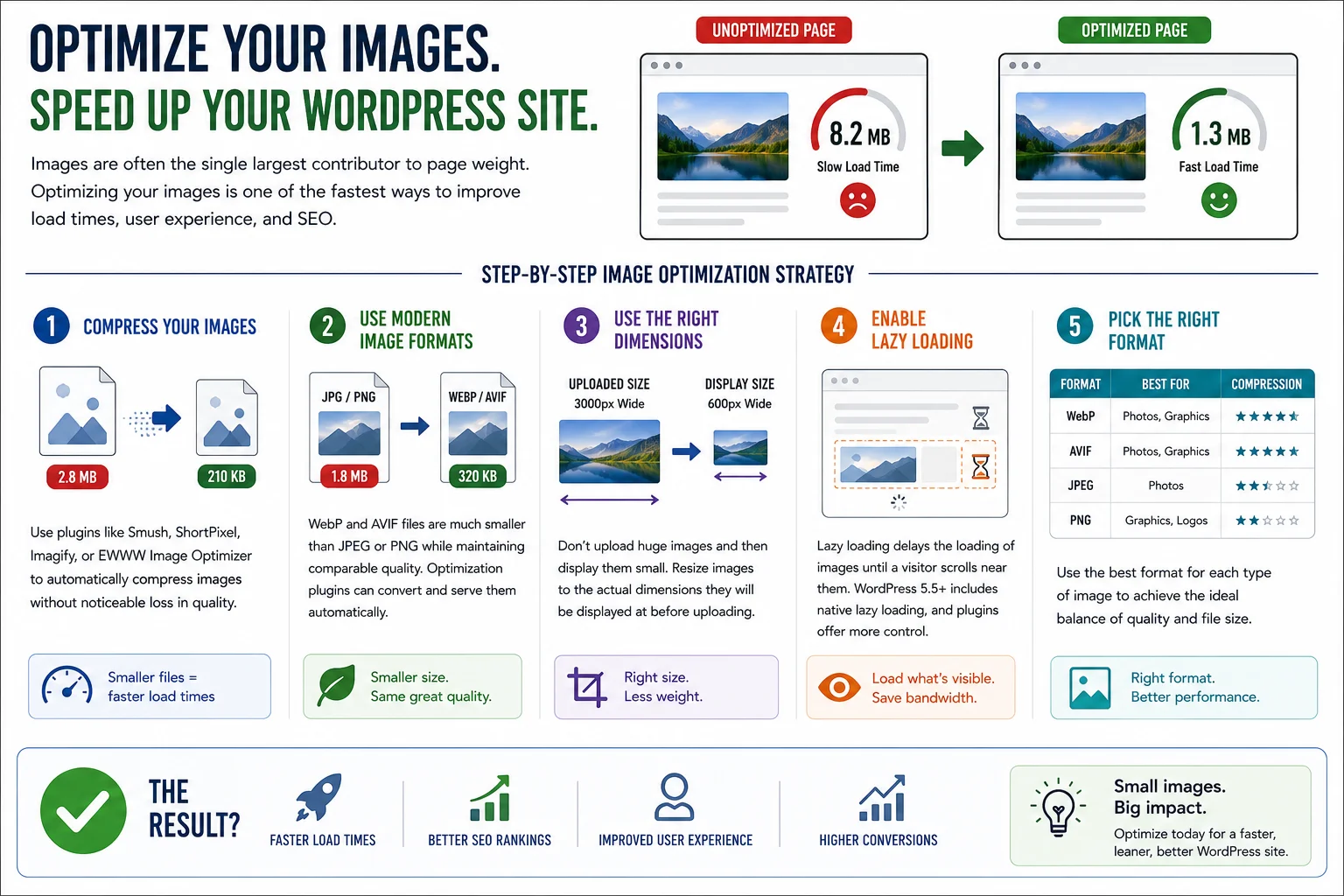
Next, make sure you are using modern image formats. WebP and AVIF files are substantially smaller than traditional JPEG or PNG files while maintaining comparable quality. Many optimization plugins can automatically convert and serve these next-generation formats to browsers that support them.
Also pay attention to image dimensions. Uploading a 3000-pixel-wide photo and then displaying it at 600 pixels wide through CSS wastes bandwidth, since the browser still downloads the full-size file. Resize images to the actual dimensions they will be displayed at before uploading them.
Finally, implement lazy loading, which delays the loading of images until a visitor scrolls near them. WordPress has included native lazy loading since version 5.5, but caching and optimization plugins often offer more refined controls over this feature.
5. Minify and Combine CSS and JavaScript Files
Every CSS and JavaScript file on your page requires a separate request to the server, and each request adds a small amount of overhead. Additionally, these files often contain extra whitespace, comments, and formatting that are helpful for developers but unnecessary for browsers.
Minification strips out this unnecessary code, reducing file size without changing functionality. Combining smaller files into fewer, larger files reduces the total number of requests a browser needs to make. Most caching plugins, including WP Rocket and W3 Total Cache, include built-in options for minification and combination.
Be cautious when enabling these settings, particularly file combination, as it can occasionally break site functionality if scripts depend on a specific loading order. Always test your site thoroughly after enabling these optimizations, checking interactive elements like menus, forms, and sliders.
You should also look for and remove render-blocking resources, which are CSS or JavaScript files that prevent the browser from displaying any content until they finish loading. Deferring non-critical JavaScript and loading critical CSS inline can significantly improve perceived load speed.
6. Use a Content Delivery Network
A content delivery network, or CDN, stores copies of your website’s static files, such as images, CSS, and JavaScript, on servers distributed around the world. When a visitor requests your page, the CDN serves those files from the server location closest to them, dramatically reducing latency, especially for visitors far from your primary hosting server.
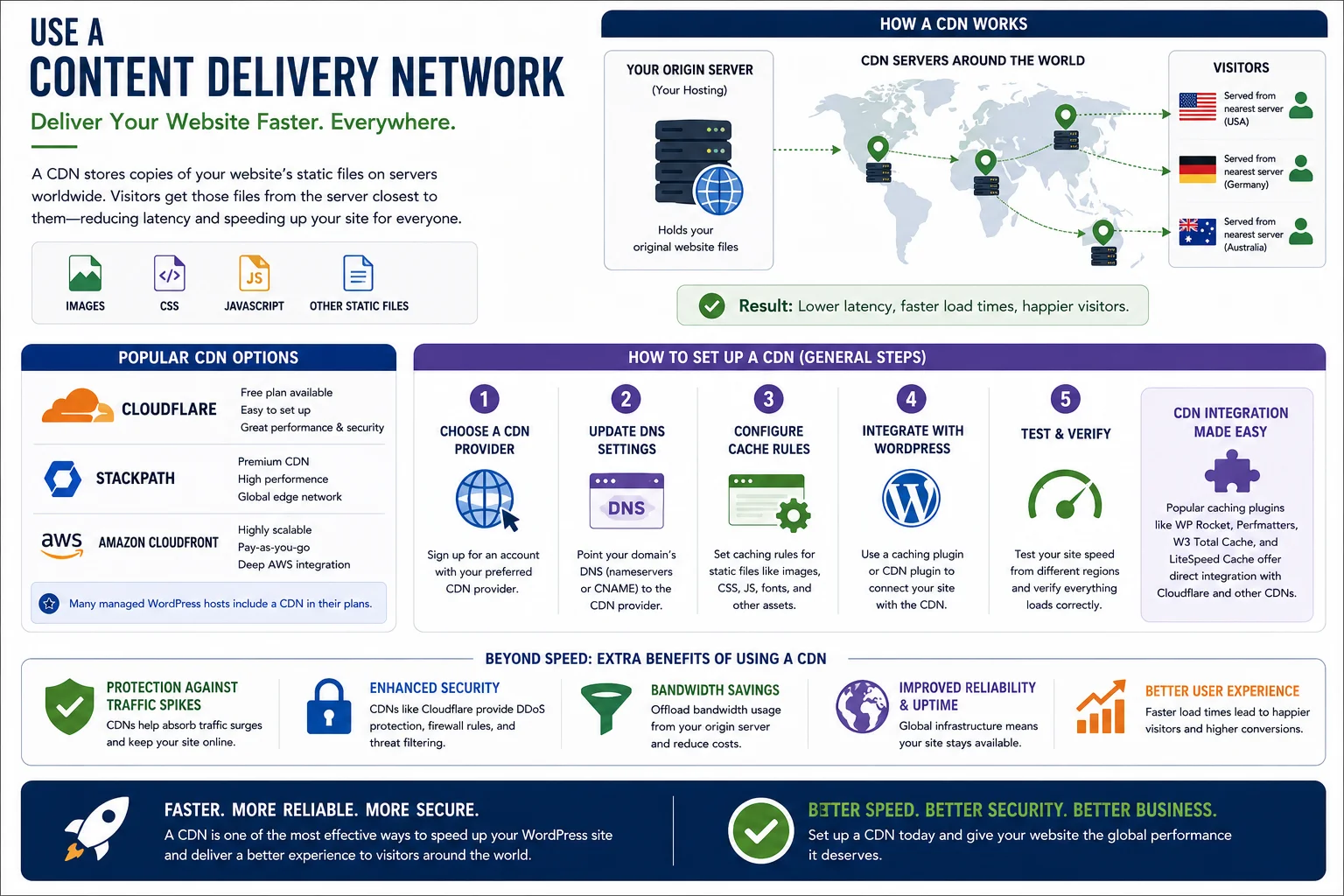
Popular CDN options include Cloudflare, which offers a generous free tier and is widely used across WordPress sites, as well as premium options like StackPath and Amazon CloudFront. Many managed WordPress hosts also include a CDN as part of their hosting package.
Setting up a CDN typically involves creating an account, pointing your domain’s DNS settings toward the CDN provider, and configuring caching rules for your static assets. Most CDN providers offer clear setup guides specifically for WordPress, and many caching plugins integrate directly with popular CDN services, simplifying the process further.
Beyond speed, CDNs also provide additional benefits including protection against certain types of traffic spikes and basic security filtering, making them a worthwhile addition even for smaller websites.
7. Reduce and Audit Your Plugins
Every plugin installed on your WordPress site adds some amount of code that needs to be loaded and executed, even on pages where the plugin’s functionality is not actively being used. Over time, many websites accumulate plugins that are outdated, redundant, or simply forgotten.
Go through your plugin list and honestly assess each one. Ask yourself whether it is still necessary, whether its functionality could be achieved through a single more efficient plugin, or whether it duplicates something your theme already handles natively. Deactivate and delete anything you no longer need.
For plugins you do keep, check whether they are well-maintained, meaning they receive regular updates and have decent reviews regarding performance. A poorly coded plugin, even a single one, can sometimes be responsible for a significant portion of your site’s slowdown. Tools like Query Monitor can help you identify which plugins are generating excessive database queries or slowing down page generation, giving you concrete data rather than guesswork.
As a general rule, fewer, higher-quality plugins will almost always outperform a large collection of mediocre ones, even if the total feature set looks similar.
8. Optimize Your WordPress Database
Over time, your WordPress database accumulates a significant amount of overhead: post revisions, trashed items, spam comments, expired transients, and orphaned data from plugins you may have removed long ago. A bloated database means every query, including the ones that generate your pages, takes longer to complete.
Plugins like WP-Optimize or Advanced Database Cleaner can clean up this excess data automatically, removing old revisions, cleaning spam comments, and optimizing database tables. It is good practice to run this kind of cleanup periodically, perhaps monthly, rather than only once.
You can also limit the number of post revisions WordPress stores by default, which prevents excessive accumulation going forward. This can be done by adding a simple line of code to your site’s configuration file that caps the number of revisions saved per post.
Regular database maintenance, combined with the caching improvements discussed earlier, ensures that the backend processes powering your site remain efficient even as your content library grows.
9. Enable GZIP or Brotli Compression
Compression reduces the size of the files your server sends to a visitor’s browser, similar to zipping a folder before sending it over email. GZIP has long been the standard method, while Brotli is a newer compression algorithm that often achieves even better compression ratios.
Many hosting providers enable compression by default at the server level, but if yours does not, most caching plugins include an option to enable it. You can also add compression rules directly to your site’s server configuration file if you are comfortable editing server settings, or ask your hosting provider’s support team to confirm it is active.
Enabling compression is a low-effort, high-impact change, and in most cases it is simply a matter of confirming it is switched on rather than requiring extensive configuration.
10. Optimize Web Fonts
Custom web fonts add personality and branding to your website, but they can also introduce noticeable delays if not handled carefully. Loading multiple font families, along with several weights and styles for each, multiplies the number of font files a browser must download before it can render text properly.
Limit yourself to one or two font families and only the specific weights you actually use throughout your design. Use the font-display: swap property, which allows text to display using a fallback font immediately while the custom font loads in the background, preventing an invisible text flash.
Whenever possible, host fonts locally rather than pulling them from an external service like Google Fonts, since this reduces the number of external connections your browser needs to establish. Several WordPress plugins can help automate the process of downloading and self-hosting Google Fonts.
11. Minimize Redirects
Every redirect adds an additional round trip between the browser and the server before the final page can load. A single redirect might only add a small delay, but chains of multiple redirects, which sometimes accumulate over years of URL changes, restructuring, and plugin migrations, can add up to a noticeable slowdown.
Periodically audit your site for unnecessary redirect chains using a tool like Screaming Frog or an online redirect checker. Where possible, update internal links to point directly to the final destination URL rather than relying on a redirect to get there, and consolidate multiple redirect hops into a single direct redirect.
12. Keep PHP and WordPress Core Updated
WordPress is built on PHP, and newer versions of PHP consistently offer meaningful performance improvements over older versions, sometimes handling requests significantly faster. If your hosting account is still running an outdated PHP version, upgrading is often one of the simplest ways to see a speed improvement with no visible changes to your site’s design or functionality.
Most hosting control panels allow you to change your PHP version with a few clicks. Before upgrading, it is wise to test your site on a staging copy first, since older or poorly maintained plugins occasionally have compatibility issues with newer PHP versions.
Similarly, always keep WordPress core, your theme, and your plugins updated to their latest versions. Updates frequently include performance optimizations alongside security patches and bug fixes, and running outdated software means missing out on improvements the developers have already made available.
13. Limit External Scripts and Third-Party Embeds
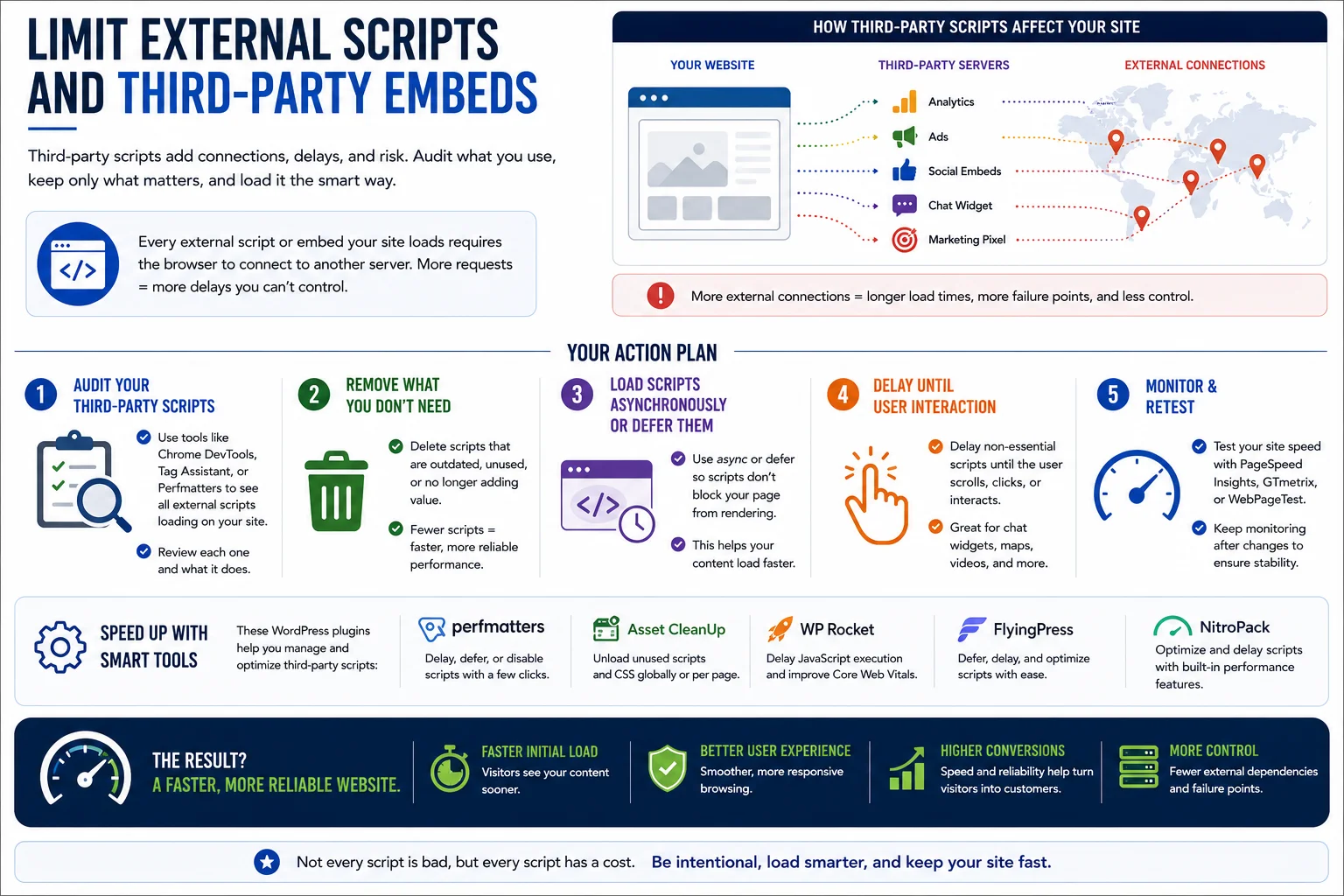 Analytics tools, advertising networks, social media embeds, chat widgets, and marketing pixels are common on modern websites, but each one requires the browser to make a connection to an external server, which can introduce unpredictable delays outside your direct control.
Audit the third-party scripts currently loading on your site and remove any that are no longer providing value. For the scripts you keep, look into loading them asynchronously or deferring them so they do not block the rendering of your main content. Some caching plugins offer built-in controls for delaying the execution of third-party scripts until a visitor interacts with the page, which can meaningfully improve initial load performance without sacrificing functionality.
14. Manage the WordPress Heartbeat API
WordPress includes a built-in feature called the Heartbeat API, which handles tasks like auto-saving posts, showing real-time notifications, and managing session locks when editing content. By default, it can send frequent background requests to your server, which adds unnecessary load, particularly if your site has many logged-in users or editors.
You can adjust the frequency of Heartbeat API activity or disable it entirely on pages where it is not needed, such as the front end of your site, using a plugin like Heartbeat Control. This is a smaller optimization compared to caching or image compression, but it can still contribute to a leaner, more efficient backend, especially on membership sites or platforms with multiple content editors.
15. Monitor and Maintain Speed Over Time
Speeding up a WordPress website is not a one-time task. New plugins, theme updates, added content, and growing traffic can all gradually reintroduce performance issues even after a successful optimization effort.
Set a recurring schedule, perhaps quarterly, to re-run your speed tests, review your plugin list, check for outdated software, and clean your database. Many hosting providers and monitoring tools, such as Uptime Robot or Google Search Console’s Core Web Vitals report, can alert you automatically if your site’s performance drops below acceptable thresholds.
Treating speed optimization as an ongoing habit rather than a single project ensures your WordPress website continues delivering a fast experience as it grows and evolves.
Special Considerations for WooCommerce and E-Commerce Sites
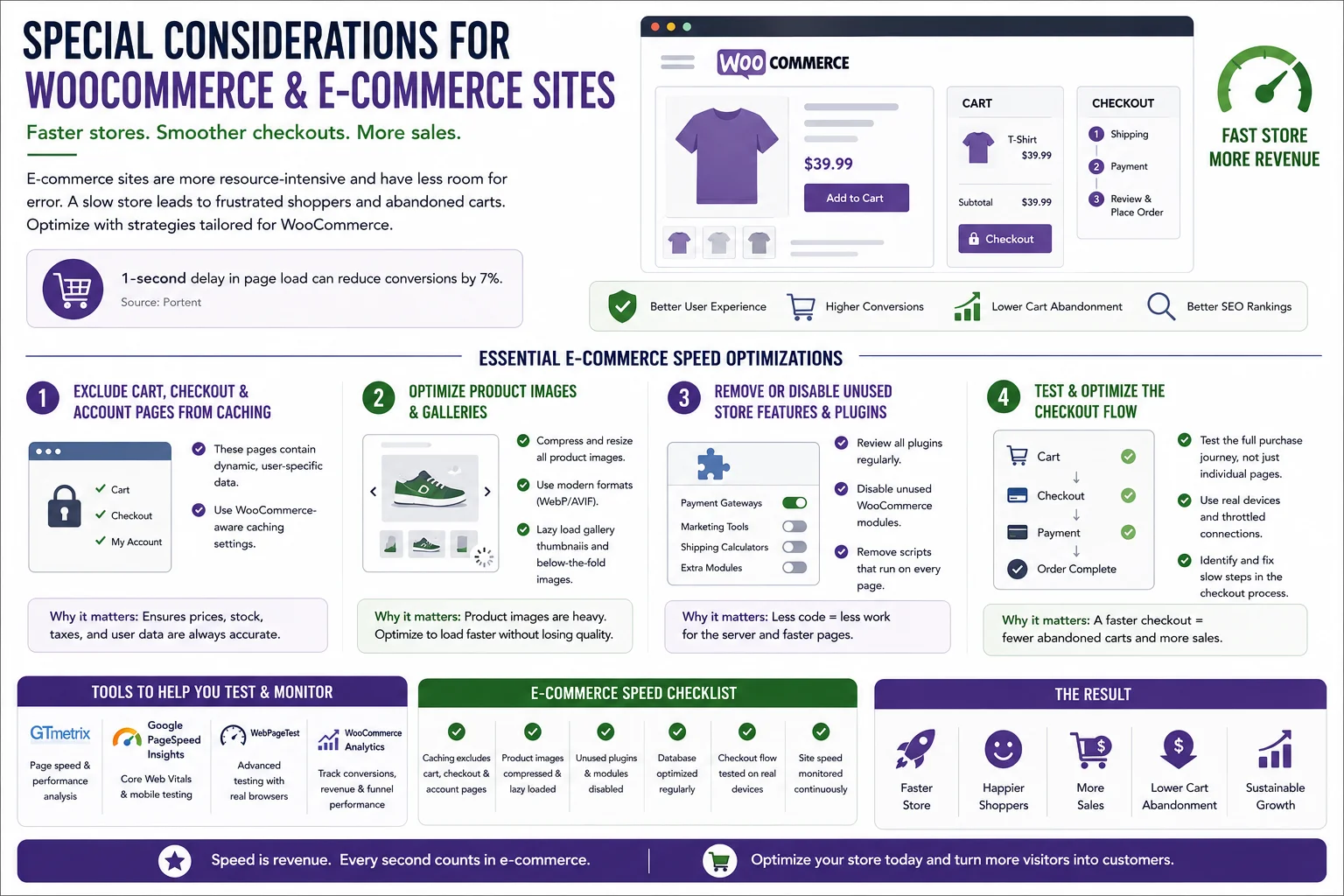
If your WordPress website runs an online store through WooCommerce or a similar plugin, speed optimization takes on extra importance because product pages, cart pages, and checkout flows are directly tied to revenue. E-commerce sites also tend to be more resource-intensive by nature, since product catalogs, variable pricing, inventory checks, and cart sessions all require dynamic, non-cacheable content.
A few extra steps are worth prioritizing on a store. First, make sure your caching plugin is configured to exclude cart, checkout, and account pages from static caching, since these pages need to reflect real-time, user-specific information. Most modern caching plugins, including WP Rocket, have WooCommerce-aware settings that handle this automatically, but it is worth double-checking the configuration manually.
Second, pay close attention to product image galleries, since stores often display multiple high-resolution images per product along with zoom functionality. Compress and resize these images aggressively, and consider lazy loading gallery thumbnails that are not immediately visible.
Third, review any store-related plugins for extras you are not using, such as unused payment gateways, marketing integrations, or shipping calculators that run on every page load rather than only on checkout. Disabling unused WooCommerce modules through the settings panel can meaningfully reduce the amount of code executing on each page.
Finally, because checkout speed has a direct and measurable impact on cart abandonment, consider testing your checkout flow specifically, in addition to your general site speed, using tools that allow you to simulate a full purchase journey rather than just loading a single page.
Mobile-Specific Speed Optimizations
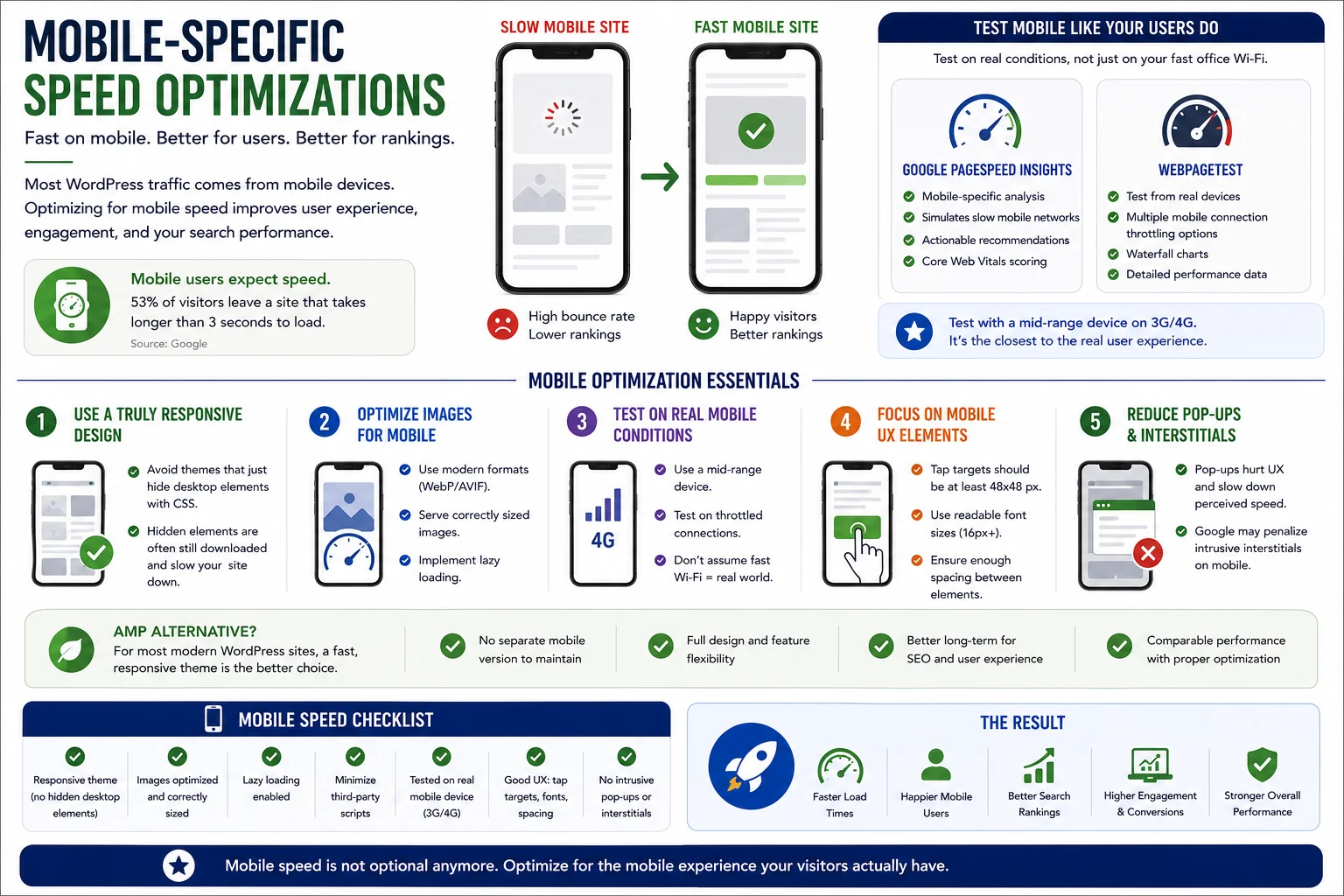
Because a large share of WordPress traffic arrives from mobile devices, it is worth treating mobile performance as its own distinct priority rather than assuming that desktop optimizations automatically translate to a fast mobile experience.
Make sure your theme uses a genuinely responsive design rather than simply hiding desktop elements with CSS, since hidden elements are often still downloaded even if they are not visible. Consider using an “Accelerated Mobile Pages” alternative only if it fits your content strategy, though for most modern themes, a well-optimized responsive design achieves comparable results without the added complexity of maintaining a separate mobile version.
Test your mobile experience on an actual mid-range device over a throttled connection rather than relying solely on a fast office Wi-Fi network, since this will more accurately reflect what a typical visitor experiences. Google PageSpeed Insights and WebPageTest both offer mobile-specific testing modes that simulate slower network conditions, which can reveal performance issues that are invisible when testing under ideal circumstances.
Pay particular attention to tap targets, font sizes, and any pop-ups or interstitials, since these not only affect perceived speed but also contribute to a poor mobile user experience even when technical load times look acceptable on paper.
A Practical Speed Optimization Checklist
If you would like a condensed action plan to work through, here is a practical order of operations based on the recommendations covered in this guide:
- Run baseline speed tests using PageSpeed Insights and GTmetrix, and record your starting scores.
- Evaluate your hosting and upgrade if your Time to First Byte is consistently slow.
- Switch to a lightweight, well-coded theme if your current one is heavy or outdated.
- Install and properly configure a single, reputable caching plugin.
- Compress and resize all images, and convert to modern formats like WebP where possible.
- Enable minification and combination of CSS and JavaScript, testing thoroughly afterward.
- Set up a content delivery network and connect it to your caching plugin.
- Audit and remove unnecessary or poorly performing plugins.
- Clean and optimize your database, and schedule recurring maintenance.
- Confirm GZIP or Brotli compression is active on your server.
- Limit web fonts and enable font-display swap.
- Reduce redirect chains across your site.
- Update PHP, WordPress core, your theme, and all plugins to their latest versions.
- Audit third-party scripts and defer or remove those that are not essential.
- Re-test your speed scores and document the improvement.
Working through this list systematically, rather than attempting everything at once, makes it much easier to identify which changes had the greatest impact and to troubleshoot quickly if something breaks along the way.
Common Mistakes to Avoid
As you work through these optimizations, watch out for a few common pitfalls. Avoid installing multiple caching plugins simultaneously, as they can conflict with one another and cause unpredictable behavior. Do not enable aggressive minification or file combination settings without testing your site afterward, since these can occasionally break functionality. Be cautious about over-optimizing images to the point where visual quality noticeably suffers, since a blurry hero image can hurt your brand’s credibility even if it loads faster. Finally, resist the temptation to install a large number of speed-related plugins all at once; instead, make changes incrementally and test after each one so you can clearly identify what worked and what did not.
Conclusion
Learning how to speed up a WordPress website comes down to addressing a series of manageable, individually straightforward improvements: choosing solid hosting, using a lightweight theme, implementing caching, optimizing images, minimizing unnecessary code, and maintaining your site consistently over time. None of these steps require advanced technical expertise, and most can be handled through well-regarded plugins and simple settings changes.
The payoff for this effort extends well beyond a better score on a speed testing tool. A faster website means happier visitors, stronger search engine visibility, and better conversion rates, all of which directly support the goals you have for your website, whether that is growing an audience, generating leads, or selling products. Start with the highest-impact changes first, such as hosting and caching, measure your results after each step, and build speed optimization into your ongoing website maintenance routine rather than treating it as a one-time fix.
Frequently Asked Questions
How much does website speed actually affect SEO rankings? Speed is one of many ranking factors search engines consider, particularly through Core Web Vitals, which assess loading performance, interactivity, and visual stability. While content quality and relevance remain more heavily weighted, a slow site can hold back an otherwise strong page from reaching its full ranking potential.
What is a good page load time to aim for? Most experts recommend aiming for a load time under two to three seconds, with Largest Contentful Paint ideally under 2.5 seconds. Faster is generally better, but diminishing returns set in once you are already performing well across the major metrics.
Can I speed up my WordPress site without any coding knowledge? Yes. Most of the recommendations in this guide, including installing a caching plugin, compressing images, and switching to a lightweight theme, can be accomplished entirely through the WordPress dashboard without touching any code.
How often should I check my website’s speed? Checking quarterly is a reasonable baseline for most sites, though you should also test immediately after any significant change, such as a new theme, a major plugin installation, or a hosting migration.
Is a caching plugin really necessary if I have good hosting? Even excellent hosting benefits from caching, since it reduces the workload on your server and speeds up page delivery. Many managed WordPress hosts include server-level caching by default, but a caching plugin often adds additional front-end optimizations like minification and lazy loading that hosting alone does not provide.