
How to Add a Post to a Page on WordPress-2026 Guide
If you’re using WordPress and are confused about how to add posts and how they appear on a page, this guide is for you.
Many beginners mix up “Post” and “Page,” but they serve different purposes. Understanding the difference is important if you want to manage your website or blog properly.
In this article, we’ll walk you through the steps to create a new post in the WordPress dashboard, format it, and display it on a specific page.
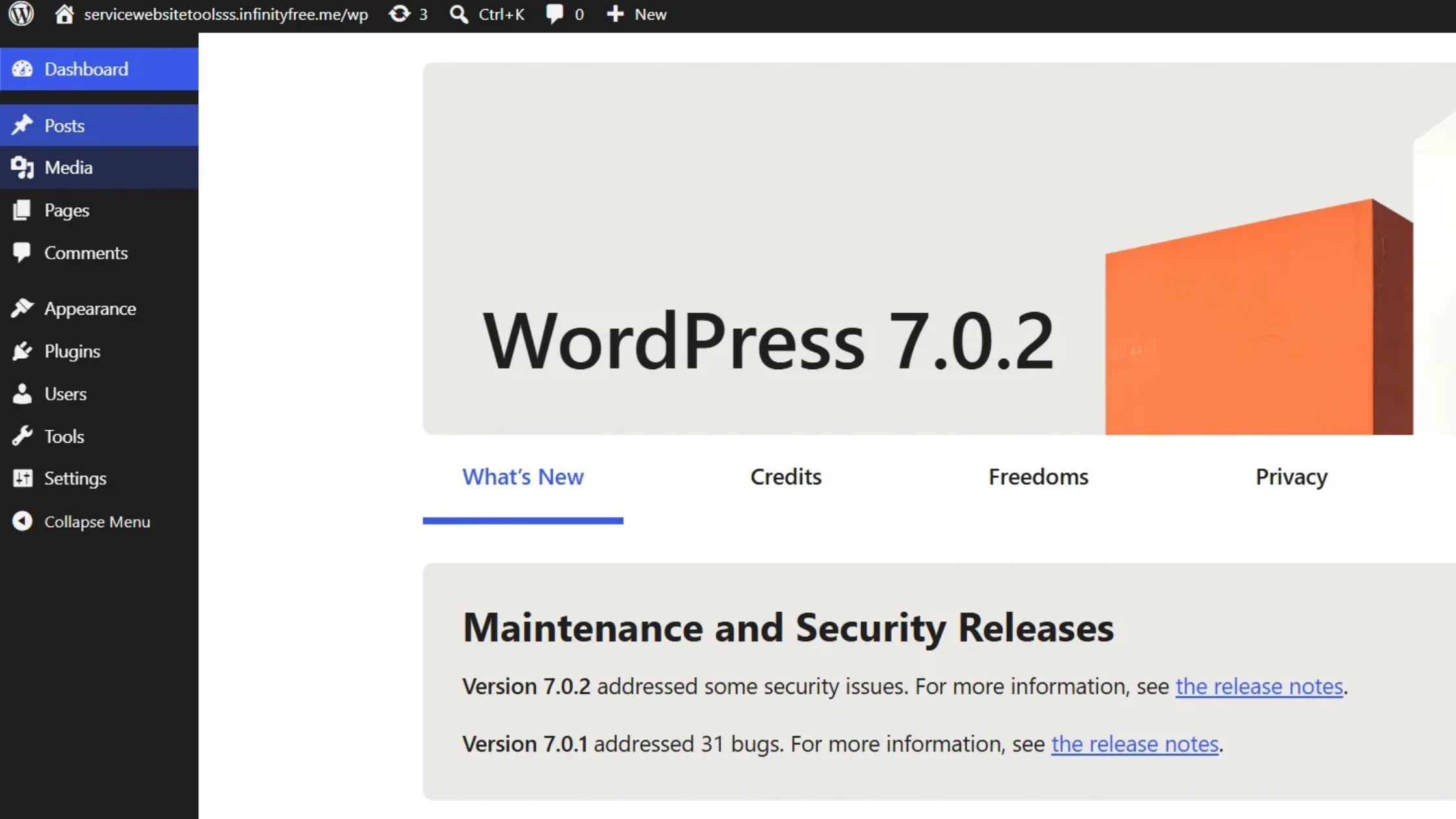
Post vs.Page – What’s the Difference?
The first thing to know is:
Post – is time-based content like blog articles and news updates.
It shows in order and is grouped by categories or tags.
Page – is used for static content like “About Us,” “Contact Us,” and “Services.” It doesn’t change often and usually appears in your navigation menu.
Simple rule: Use a Post if the content will be updated regularly (like a blog or news site).
Use a Page if the content stays the same (like company information).
Step-by-Step: Adding a New Post
Step 1 – Log in to the WordPress Dashboard
Go to yourwebsite.com/wp-admin in your browser.
Enter your username and password, and you’ll be taken to the dashboard.
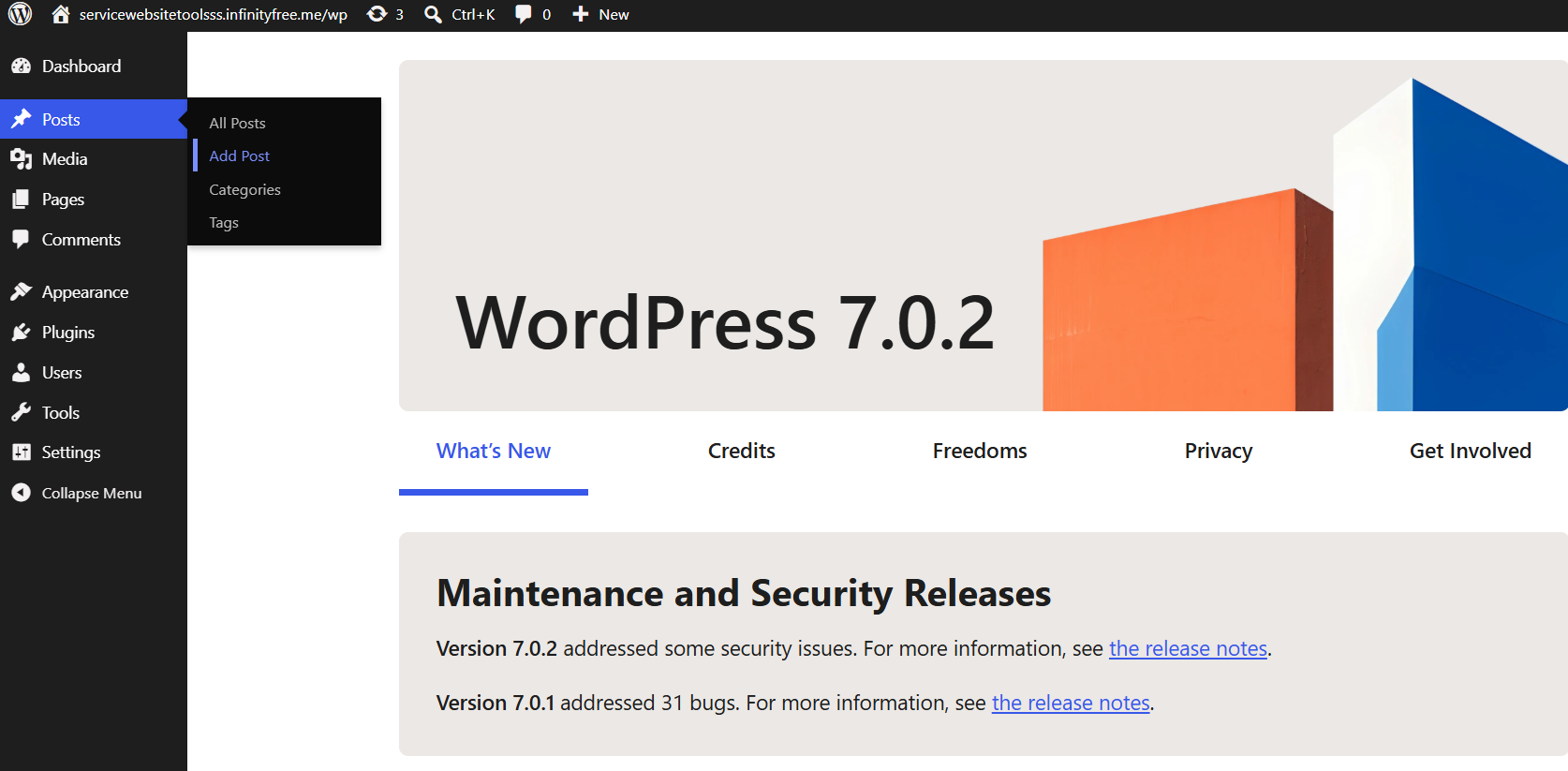
Step 2 – Go to Posts → Add New
In the left sidebar, click on Posts, then press the Add New button.
This opens a blank editor where you can start writing your post.
Step 3 – Add Title and Content
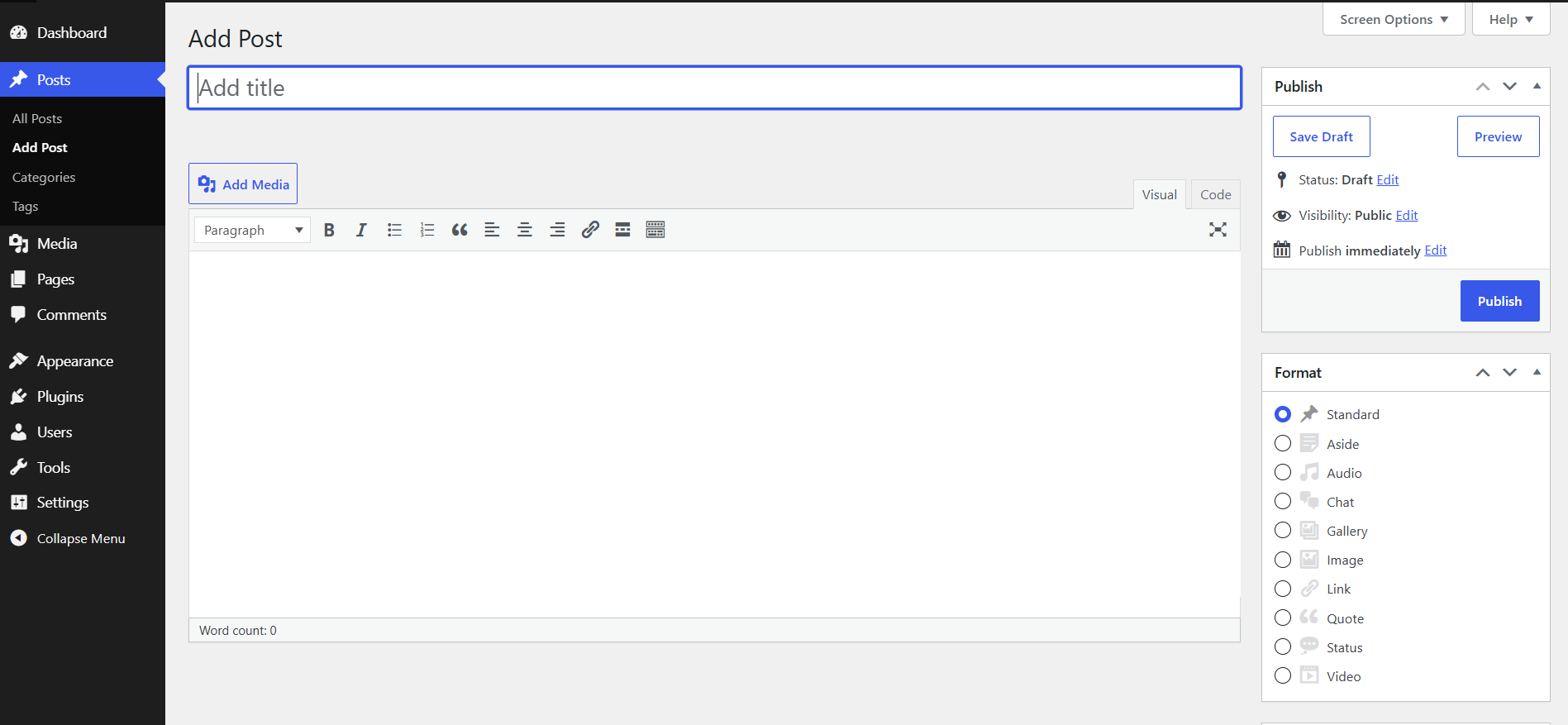
Write your post’s title in the top box.
Make sure it’s clear and uses keywords. Type your main content in the editor below. Using WordPress’ block editor ( Disable Gutenberg), you can:
– Add headings (H2, H3)
– Insert paragraphs, bullet points, and images
– Apply bold or italic formatting
– Add quotes or tables
When writing your content, keep paragraphs short – no more than 2-3 lines.
This makes it easier to read and keeps users on the page longer.
Step 4 – Set Featured Image and Category
Scroll down to the right sidebar.
Click “Set featured image” to upload your cover picture.You’ll also find Categories and Tags in this sidebar – place your post in the correct category to keep your content organized for users and Google.
Step 5 – Publish or Schedule
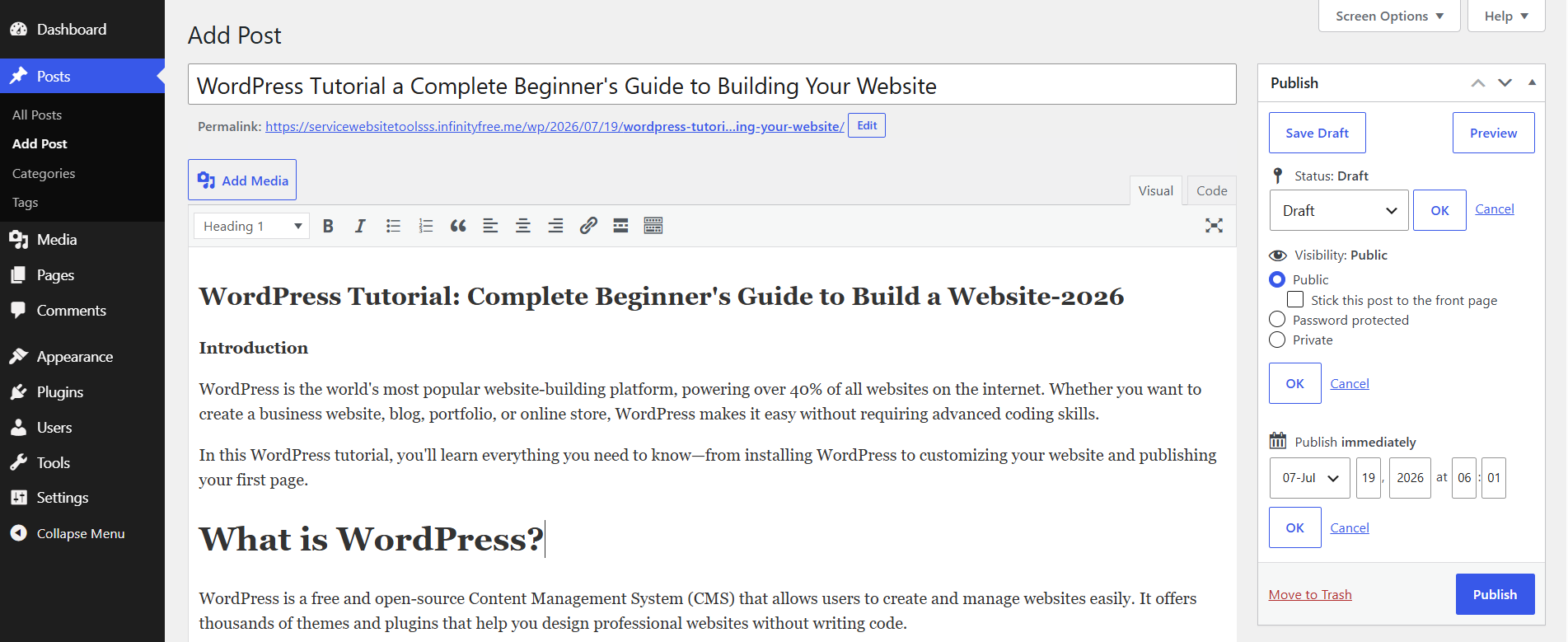
After checking everything, click the Publish button in the top right corner.
If you don’t want to publish right now, you can click Save Draft or choose a future date/time using the Schedule option.
How to Display a Post on a Specific Page
Many people wonder, “How will my post show up on the homepage or another page?” There are two common ways:
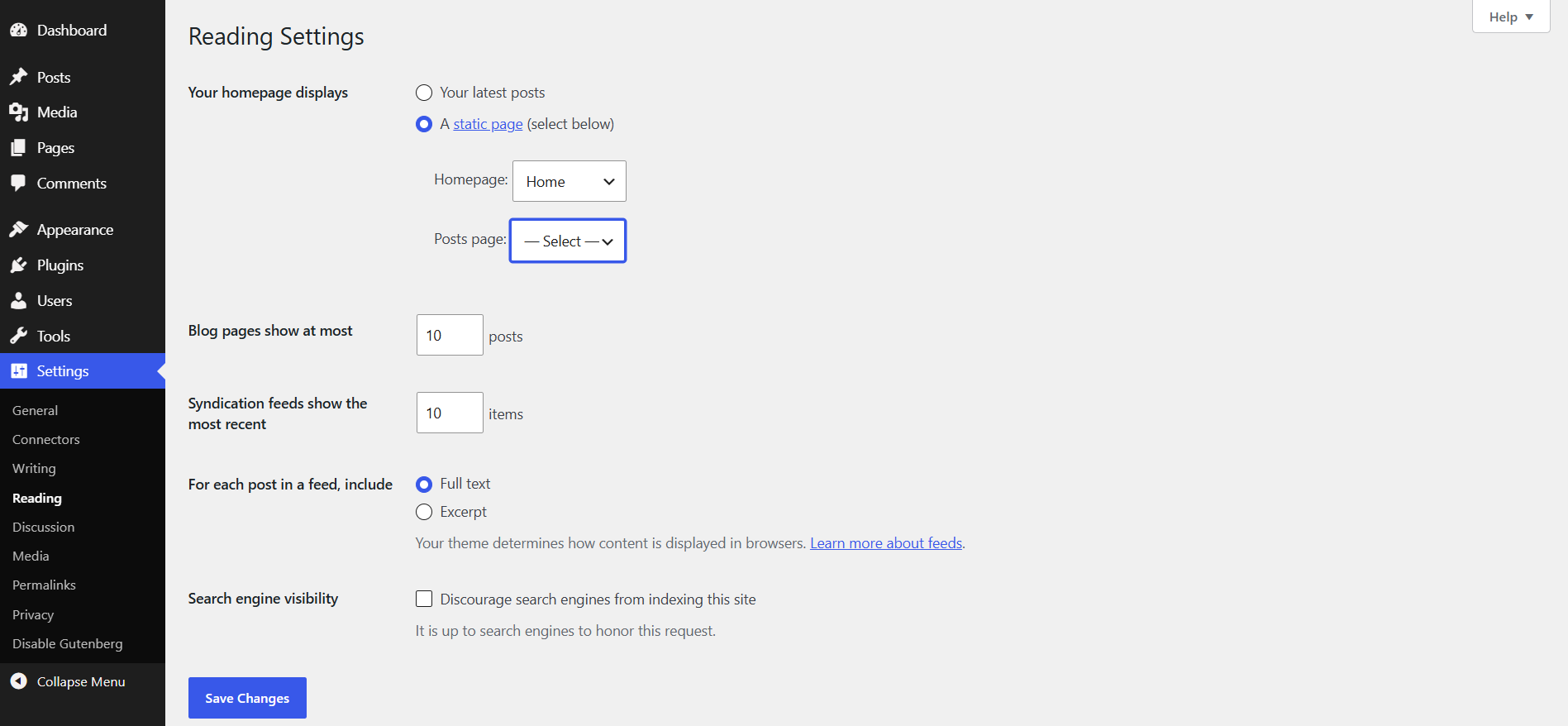
– Setting up a Blog Page: Go to Settings → Reading, choose “A static page” under “Your homepage displays,” and set your blog page as the “Posts page.” All your posts will appear on that page automatically.
– Using Shortcodes or Blocks: If you want to manually display a specific post on a page, use the “Latest Posts” block in the Gutenberg editor or use category-specific shortcodes supported by your theme.
Extra Features of the Post Editor That Come in Handy
Many beginners use just the title and paragraph, but the WordPress editor has other useful features that make your post look better:
– Excerpt: The “Excerpt” box in the right sidebar lets you write a short summary of your post.
It helps on blog listing pages and social media sharing.
– Permalink/URL Edit: The post URL appears below the title.
You can edit it to make it short and keyword-focused, like /add-post-wordpress instead of /how-to-add-a-post-in-wordpress-step-by-step-guide-2026.
– Discussion Settings: Here, you can decide who can comment on your post.
Essential Gutenberg Blocks Every Post Should Include
The Gutenberg editor offers several built-in blocks that help make your content look more professional, organized, and engaging.
1. Heading Block
Use H2 and H3 headings to divide your content into clear sections. This improves readability and helps search engines better understand your content structure.
2. Image Block
Don’t place all your images at the end of the article. Instead, add 2–3 relevant images throughout the content to break up long sections of text and keep readers engaged.
3. List Block
Whenever you’re explaining steps, tips, or key points, use bullet points or numbered lists instead of long paragraphs. Lists are easier to read and scan.
4. Quote Block
Use the Quote Block to highlight important tips, expert advice, or key takeaways. It makes important information stand out visually.
5. Table Block
If you need to compare features, pricing, specifications, or any other data, the Table Block is the best option. It presents information in a clean and easy-to-understand format.

How to Add a Post Using the WordPress Mobile App
If you want to publish a blog post from your phone, you can use the official WordPress mobile app, available for both Android and iOS.
After logging into your website, simply navigate to Posts → Add New and start creating your content. The mobile editor is more streamlined than the desktop version, but it still includes essential features like headings, images, and lists.
The mobile app is especially useful when you need to publish a quick update, announcement, or news post while you’re away from your computer.
Quick Checklist Before Publishing Your Post
Before clicking the Publish button, take a moment to review the following:
- Make sure your title is clear and includes your target keyword.
- Add a featured image.
- Select the appropriate category and tags.
- Fill in the SEO title and meta description using Yoast SEO or Rank Math.
- Include at least one or two internal links to related posts.
- Proofread your content for grammar and spelling mistakes.
- Preview the post on mobile to ensure the layout looks good on smaller screens.
Common Mistakes Beginners Make
Many beginners make small mistakes that can affect the quality and performance of their blog posts. Here are some of the most common ones:
- Confusing Posts with Pages. For example, pages like About Us or Contact Us should be created as Pages, not Posts.
- Forgetting to add a featured image, which can reduce your click-through rate and make your content less appealing.
- Not assigning a category, making your website harder to navigate.
- Writing long, unbroken paragraphs that reduce readability.
- Ignoring the SEO title and meta description, which can negatively impact search engine rankings.
Frequently Asked Questions
Can I display the same post on multiple pages?
Yes. If your WordPress theme supports the Latest Posts block or widget, the same blog post can appear on multiple pages across your website.
Can I edit a post after publishing it?
Absolutely. Go to Posts, open the post you want to edit, make your changes, and click Update to save them.
What is the ideal featured image size?
For most WordPress themes, a 1200 × 628 pixels featured image works well. You can