
How to Improve WordPress Site Speed: The Complete 2026 Guide
A slow WordPress website costs you more than just visitor patience — it costs you rankings, conversions, and revenue. Google has confirmed that page speed is a ranking factor for both desktop and mobile search, and studies consistently show that even a one-second delay in load time can reduce conversions significantly. If your WordPress site feels sluggish, this guide walks you through every practical, proven method to fix it — from quick wins you can apply today to deeper technical fixes for developers.
Why WordPress Site Speed Matters
Before diving into fixes, it helps to understand what’s at stake:
- SEO rankings: Core Web Vitals (LCP, INP, and CLS) are part of Google’s ranking signals.
- User experience: Visitors abandon slow sites within seconds, especially on mobile.
- Conversion rate: E-commerce stores lose sales for every extra second of load time.
- Crawl budget: Slow sites get crawled less efficiently by search engines, which can delay indexing of new content.
The good news is that WordPress speed problems are almost always fixable — the platform itself isn’t inherently slow, but poor hosting, bloated themes, unoptimized images, and too many plugins usually are.
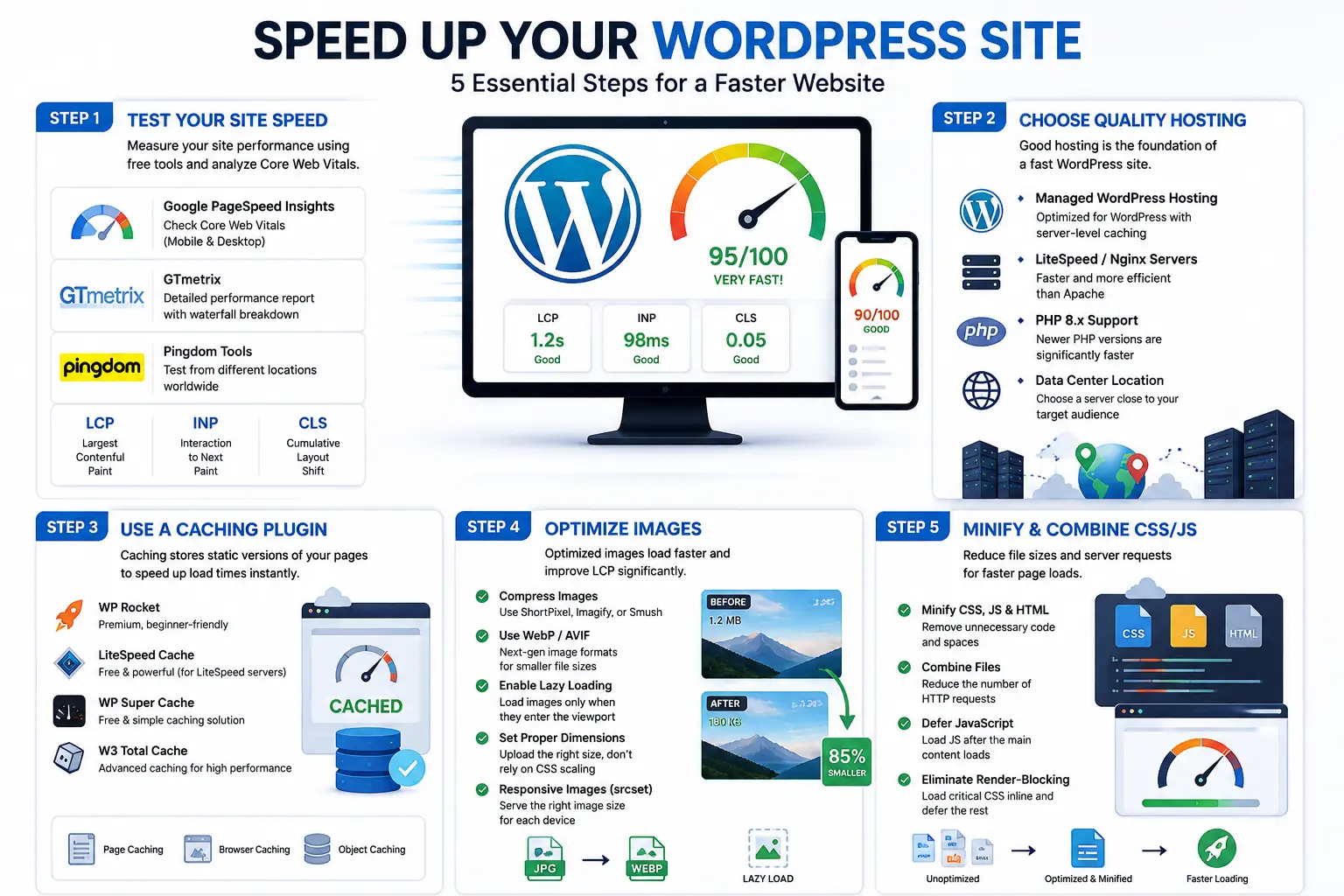
Step 1: Test Your Current Site Speed
You can’t improve what you don’t measure. Start with these free tools:
- Google PageSpeed Insights – shows Core Web Vitals scores for both mobile and desktop.
- GTmetrix – gives a detailed waterfall breakdown of what’s loading slowly.
- Pingdom Tools – useful for testing from different global locations.
Run your homepage and 2–3 key inner pages through these tools. Note your scores for Largest Contentful Paint (LCP), Interaction to Next Paint (INP), and Cumulative Layout Shift (CLS) — these three metrics matter most for both users and rankings.
Step 2: Choose Quality Hosting
Hosting is the single biggest factor in WordPress speed, and it’s the one most people underinvest in. Shared hosting with hundreds of other sites on the same server will always struggle under real traffic.
Look for:
- Managed WordPress hosting (e.g., providers optimized specifically for WordPress with server-level caching)
- LiteSpeed or Nginx servers instead of plain Apache
- PHP 8.x support — newer PHP versions are noticeably faster than PHP 7.x
- A data center location close to your target audience — if most of your visitors are in the US or Gulf region, choose a server region near them
If your site is still slow after optimization, hosting is usually the root cause.
Step 3: Use a Caching Plugin
Caching stores a static version of your pages so WordPress doesn’t have to rebuild them from the database on every visit. This is one of the fastest ways to cut load time.
Popular options:
- WP Rocket (premium, very beginner-friendly)
- LiteSpeed Cache (free, excellent if your host uses LiteSpeed servers)
- WP Super Cache or W3 Total Cache (free alternatives)
Enable page caching, browser caching, and if available, object caching (Redis or Memcached) for database-heavy sites.
Step 4: Optimize Images
Images are usually the heaviest assets on a WordPress page. Fixing this alone can dramatically improve LCP.
- Compress images before or after upload using tools like ShortPixel, Imagify, or Smush.
- Use next-gen formats like WebP or AVIF instead of JPG/PNG.
- Enable lazy loading so images below the fold don’t load until the user scrolls to them (most modern themes and caching plugins support this natively).
- Set proper image dimensions — never upload a 4000px image and let CSS shrink it to 400px.
- Use a responsive image setup (
srcset) so mobile devices load smaller versions.
Step 5: Minify and Combine CSS/JS Files
Every CSS and JavaScript file your site loads requires a separate server request. Minifying removes unnecessary code, and combining reduces the number of requests.
- Use your caching plugin’s built-in minification (WP Rocket and LiteSpeed Cache both offer this).
- Defer non-critical JavaScript so it loads after the main content.
- Eliminate render-blocking resources by inlining critical CSS and loading the rest asynchronously.
- Be cautious with combining files on HTTP/2 servers — sometimes it’s better to leave files separate since HTTP/2 handles multiple small requests efficiently.
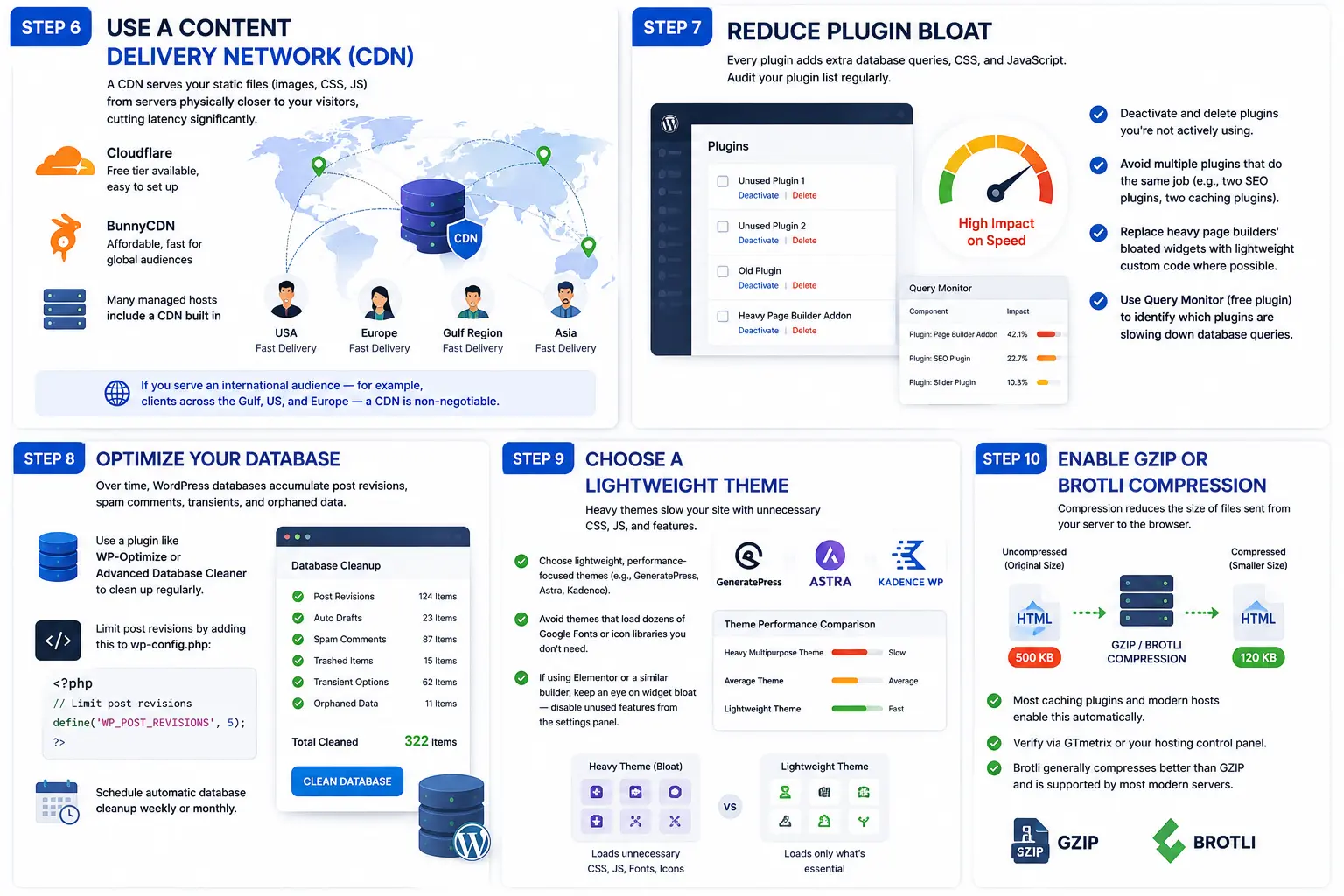
Step 6: Use a Content Delivery Network (CDN)
A CDN serves your static files (images, CSS, JS) from servers physically closer to your visitors, cutting latency significantly.
- Cloudflare (free tier available, easy to set up)
- BunnyCDN (affordable, fast for global audiences)
- Many managed hosts include a CDN built in
If you serve an international audience — for example, clients across the Gulf, US, and Europe — a CDN is non-negotiable.
Step 7: Reduce Plugin Bloat
Every plugin adds extra database queries, CSS, and JavaScript. Audit your plugin list regularly:
- Deactivate and delete plugins you’re not actively using.
- Avoid multiple plugins that do the same job (e.g., two SEO plugins, two caching plugins).
- Replace heavy page builders’ bloated widgets with lightweight custom code where possible.
- Use Query Monitor (a free plugin) to identify which plugins are slowing down database queries.
Step 8: Optimize Your Database
Over time, WordPress databases accumulate post revisions, spam comments, transients, and orphaned data.
- Use a plugin like WP-Optimize or Advanced Database Cleaner to clean up regularly.
- Limit post revisions by adding this to
wp-config.php: phpdefine('WP_POST_REVISIONS', 5); Schedule automatic database cleanup weekly or monthly.
Step 9: Choose a Lightweight Theme
Heavy, feature-loaded themes (especially multipurpose themes with built-in page builders) often ship with unnecessary CSS/JS you’ll never use.
- Choose lightweight, performance-focused themes (e.g., GeneratePress, Astra, Kadence).
- Avoid themes that load dozens of Google Fonts or icon libraries you don’t need.
- If using Elementor or a similar builder, keep an eye on widget bloat — disable unused Elementor features from its settings panel.
Step 10: Enable GZIP or Brotli Compression
Compression reduces the size of files sent from your server to the browser. Most caching plugins and modern hosts enable this automatically, but it’s worth verifying via GTmetrix or your hosting control panel. Brotli generally compresses better than GZIP and is supported by most modern servers.
Step 11: Fix Cumulative Layout Shift (CLS)
CLS measures visual stability — how much elements jump around as a page loads. Common causes and fixes:
- Always set explicit width and height attributes on images and embeds.
- Reserve space for ads or dynamically loaded content.
- Avoid inserting content above existing content after the page has loaded.
- Preload key fonts to avoid font-swap layout shifts.
Step 12: Monitor and Maintain Speed Over Time
Speed optimization isn’t a one-time task. As you add content, plugins, and images, performance can degrade again.
- Re-test speed monthly using PageSpeed Insights or GTmetrix.
- Review plugin and theme updates for performance regressions.
- Keep an ongoing image optimization workflow for new uploads.
- Consider a maintenance plan (many WordPress agencies offer this) to catch speed issues before they affect rankings.
Quick-Win Checklist
If you only have 30 minutes, prioritize these:
- Install a caching plugin and enable basic settings.
- Compress all existing images with a bulk optimizer.
- Connect Cloudflare CDN (free tier).
- Deactivate unused plugins.
- Switch to a lightweight theme if currently using a heavy multipurpose one.
Final Thoughts
Improving WordPress site speed is rarely about one single fix — it’s the combination of good hosting, smart caching, optimized images, clean code, and ongoing maintenance that gets you consistently fast load times. Start with the quick wins, measure your progress with PageSpeed Insights or GTmetrix after each change, and work your way through the deeper technical steps.
If your site is still slow after trying these steps, the issue is often hosting infrastructure or theme/plugin conflicts that need a developer’s eye to diagnose properly — that’s usually where working with a WordPress performance specialist pays for itself in recovered traffic and conversions.