
How to Fix WordPress Issues SSL Errors: A Complete Step-by-Step Guide
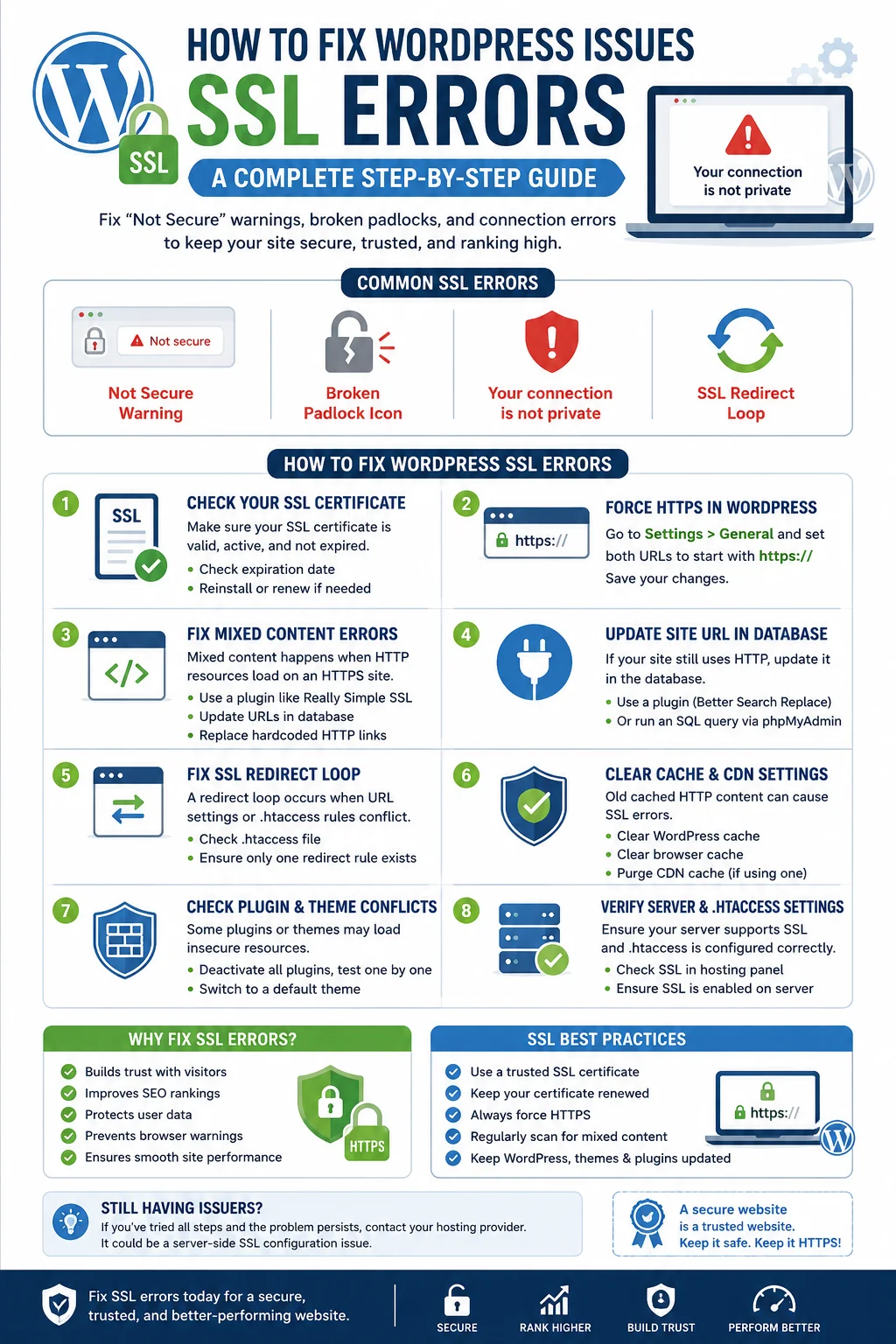
If your website is showing a “Not Secure” warning, a broken padlock icon, or an outright “Your connection is not private” message, you’re dealing with one of the most common technical headaches WordPress site owners face. In this guide, we’ll show you exactly how to fix WordPress issues SSL errors, covering everything from mixed content warnings to expired certificates to redirect loops. Whether you’re a complete beginner or a seasoned site owner troubleshooting a stubborn issue, this article will walk you through practical, actionable solutions.
SSL errors aren’t just an annoyance—they can scare away visitors, hurt your search engine rankings, and even prevent your site from loading altogether in some browsers. Understanding why these errors happen and how to resolve them is an essential skill for anyone managing a WordPress website. Let’s dive in.
What Is an SSL Certificate, and Why Does It Matter?
Before we get into specific fixes, it’s worth understanding what SSL actually is and why it’s so important for your WordPress site. SSL stands for Secure Sockets Layer, a security protocol that encrypts the connection between your website and your visitors’ browsers. When SSL is properly configured, your site uses HTTPS instead of HTTP, and browsers display a padlock icon in the address bar to indicate the connection is secure.
SSL certificates are important for several reasons. First, they protect sensitive data—such as login credentials, payment information, and personal details—from being intercepted by third parties. Second, Google has confirmed that HTTPS is a ranking signal, meaning sites without proper SSL configuration may be at a disadvantage in search results. Third, most modern browsers, including Chrome and Firefox, actively warn or block users from visiting sites with SSL problems, which can dramatically increase your bounce rate and damage user trust.
Given how central SSL is to both security and SEO, it’s no surprise that fixing SSL errors quickly is a top priority for WordPress site owners.
Common Types of WordPress SSL Errors
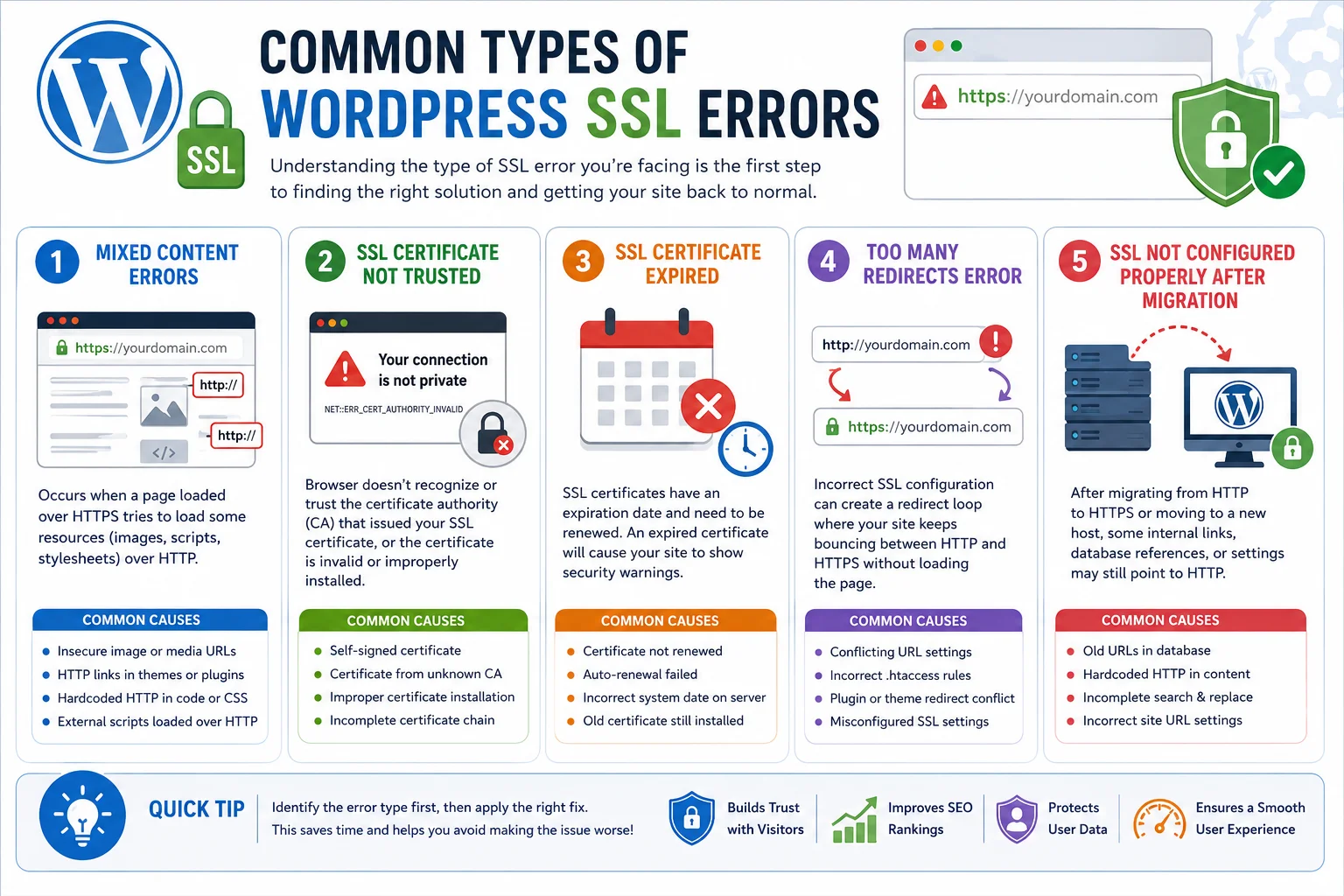
Before jumping into solutions, it helps to understand the different types of SSL errors you might encounter. Each type has slightly different causes and fixes, so correctly identifying your specific issue is the first step toward resolving it.
Mixed Content Errors
Mixed content errors occur when a page loaded over HTTPS also tries to load some resources—like images, scripts, or stylesheets—over the older, unsecured HTTP protocol. Browsers flag this as a security risk, often displaying a warning icon or refusing to load the insecure resources altogether. This is one of the most common SSL-related issues WordPress users encounter, especially after migrating a site from HTTP to HTTPS.
SSL Certificate Not Trusted
This error appears when a browser doesn’t recognize or trust the certificate authority (CA) that issued your SSL certificate, or when the certificate itself is invalid, expired, or improperly installed. This can happen with self-signed certificates or certificates that weren’t installed correctly on your server.
SSL Certificate Expired
SSL certificates aren’t permanent—they have expiration dates and need to be renewed periodically. If your certificate has expired and wasn’t automatically renewed, your site will start showing security warnings until a new certificate is installed.
Too Many Redirects Error
Sometimes, incorrect SSL configuration can create a redirect loop, where your site keeps bouncing between HTTP and HTTPS versions of a URL without ever successfully loading the page. This typically results in a “too many redirects” error message in the browser.
SSL Not Configured Properly After Migration
If you’ve recently moved your WordPress site to a new host or migrated from HTTP to HTTPS, it’s common for some internal links, database references, or configuration settings to still point to the old HTTP version of your site, causing various SSL-related conflicts.
How to Fix WordPress Issues SSL Errors: Step-by-Step Solutions
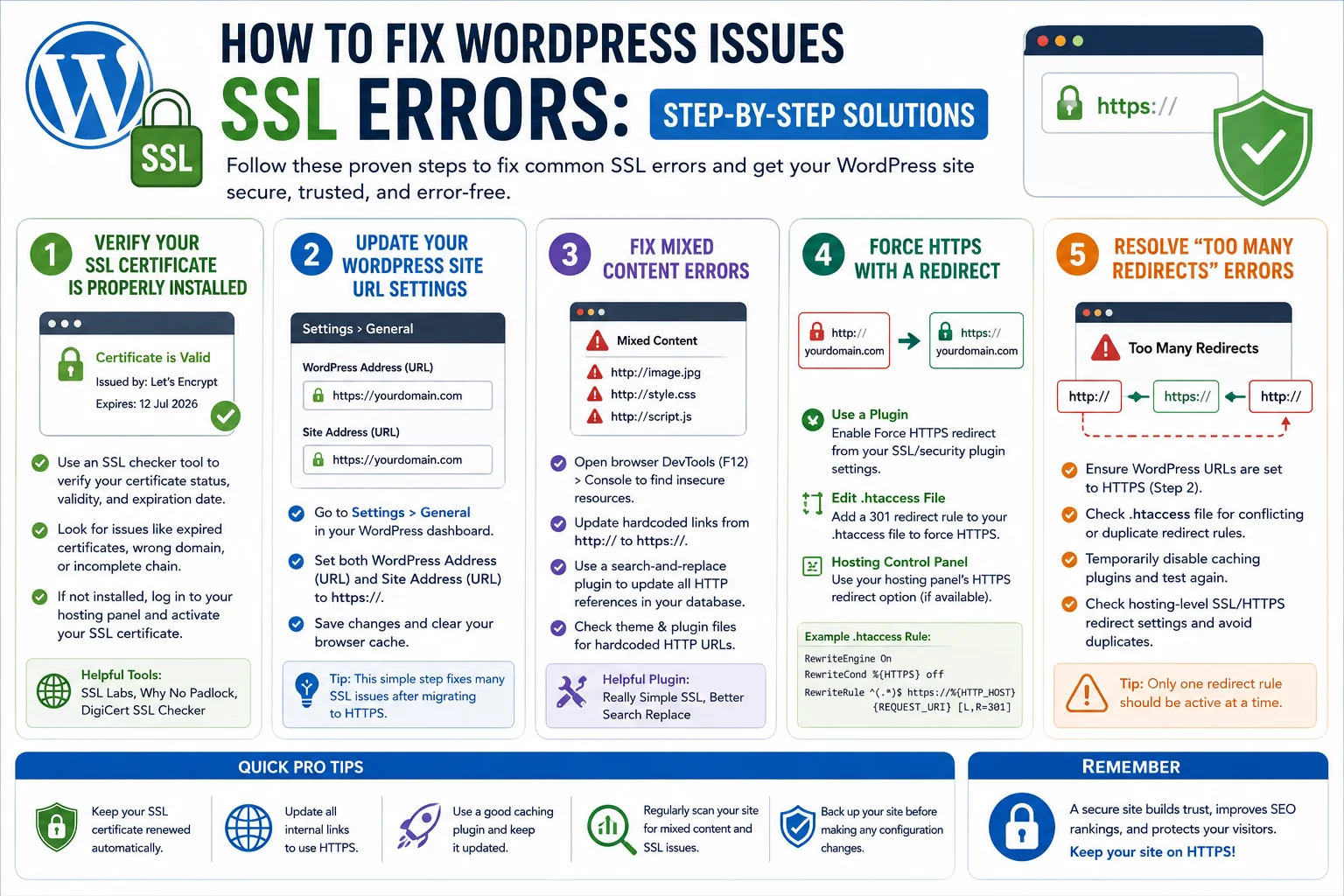
Now let’s get into the practical fixes. We’ll go through each type of error systematically, starting with the most common issues.
Step 1: Verify Your SSL Certificate Is Properly Installed
The first thing you should do when troubleshooting any SSL error is confirm that your SSL certificate is actually installed and valid. Most hosting providers, including Hostinger, Bluehost, and GoDaddy, offer free SSL certificates (often through Let’s Encrypt) that can typically be activated with a single click from your hosting control panel.
To check your certificate status, you can use free online tools that scan your domain and report on the validity, expiration date, and configuration of your SSL certificate. These tools will flag issues like expired certificates, mismatched domain names, or incomplete certificate chains, giving you a clear starting point for troubleshooting.
If you find that your certificate isn’t installed at all, log into your hosting control panel and look for an SSL or security section. Most modern hosts make it easy to activate a free SSL certificate for your domain directly from this dashboard.
Step 2: Update Your WordPress Site URL Settings
One of the most common causes of SSL errors after enabling HTTPS is that your WordPress site is still configured to use HTTP in its core settings. To fix this, log into your WordPress dashboard and navigate to Settings, then General. Here, you’ll find two fields: “WordPress Address (URL)” and “Site Address (URL).” Make sure both of these are set to use “https://” rather than “http://” at the beginning of your domain.
After making this change, save your settings and clear your browser cache before testing your site again. This simple fix resolves a surprising number of SSL-related issues, particularly on sites that were recently migrated to HTTPS.
Step 3: Fix Mixed Content Errors
Mixed content errors require identifying which specific resources on your site are still being loaded over HTTP. You can often find these by opening your browser’s developer tools (usually accessible by pressing F12 or right-clicking and selecting “Inspect”) and checking the Console tab for warnings about insecure content.
Once you’ve identified the problematic resources, there are a few ways to fix them:
Manually update hardcoded links: If you find specific images, scripts, or links in your content that reference “http://” instead of “https://,” you can edit these directly in your WordPress editor or through your theme’s files.
Use a search-and-replace plugin: Since mixed content issues often stem from old HTTP references scattered throughout your database (in post content, widget settings, and theme options), using a dedicated search-and-replace plugin can help you update all instances at once, changing “http://yourdomain.com” to “https://yourdomain.com” throughout your entire database.
Check your theme and plugin files: Sometimes mixed content errors originate from your theme or plugins hardcoding HTTP URLs for external resources, such as fonts, icons, or scripts. Reviewing your theme’s functions.php file or contacting your theme/plugin developer can help resolve these deeper issues.
Step 4: Force HTTPS with a Redirect
Even after installing an SSL certificate, your site might still be accessible via both HTTP and HTTPS, which can create confusion for search engines and split your SEO value between two versions of the same page. To fix this, you should set up a permanent redirect (a 301 redirect) that automatically sends all HTTP traffic to the HTTPS version of your site.
This can typically be accomplished in one of a few ways:
Using a plugin: Many WordPress security and SSL plugins include a simple toggle to force HTTPS redirects across your entire site, making this one of the easiest methods for non-technical users.
Editing your .htaccess file: For sites hosted on Apache servers, you can add a redirect rule to your .htaccess file that forces all traffic to use HTTPS. This requires accessing your site’s files via FTP or your hosting file manager, and it’s a good idea to back up your .htaccess file before making any changes.
Configuring redirects through your hosting panel: Many hosting providers, including Hostinger and Bluehost, offer a simple toggle within their control panel to force HTTPS across your entire domain without needing to edit any code manually.
Step 5: Resolve “Too Many Redirects” Errors
If you’re seeing a “too many redirects” error, this usually indicates a conflict between multiple redirect rules—for example, your WordPress settings might be trying to redirect to HTTPS while your hosting server (or a caching plugin) is simultaneously redirecting back to HTTP, creating an infinite loop.
To fix this, start by checking your WordPress General Settings to confirm your site URLs are set to HTTPS, as described in Step 2. Next, check your .htaccess file for conflicting or duplicate redirect rules, and remove any that seem redundant or contradictory. If you’re using a caching plugin, temporarily disable it to see if the issue resolves, since some caching plugins can serve outdated, cached versions of pages with conflicting redirect instructions. Finally, check your hosting-level SSL settings, since some hosts have their own HTTPS redirect toggle that can conflict with WordPress-level redirects if both are enabled simultaneously.
Step 6: Check for an Expired SSL Certificate
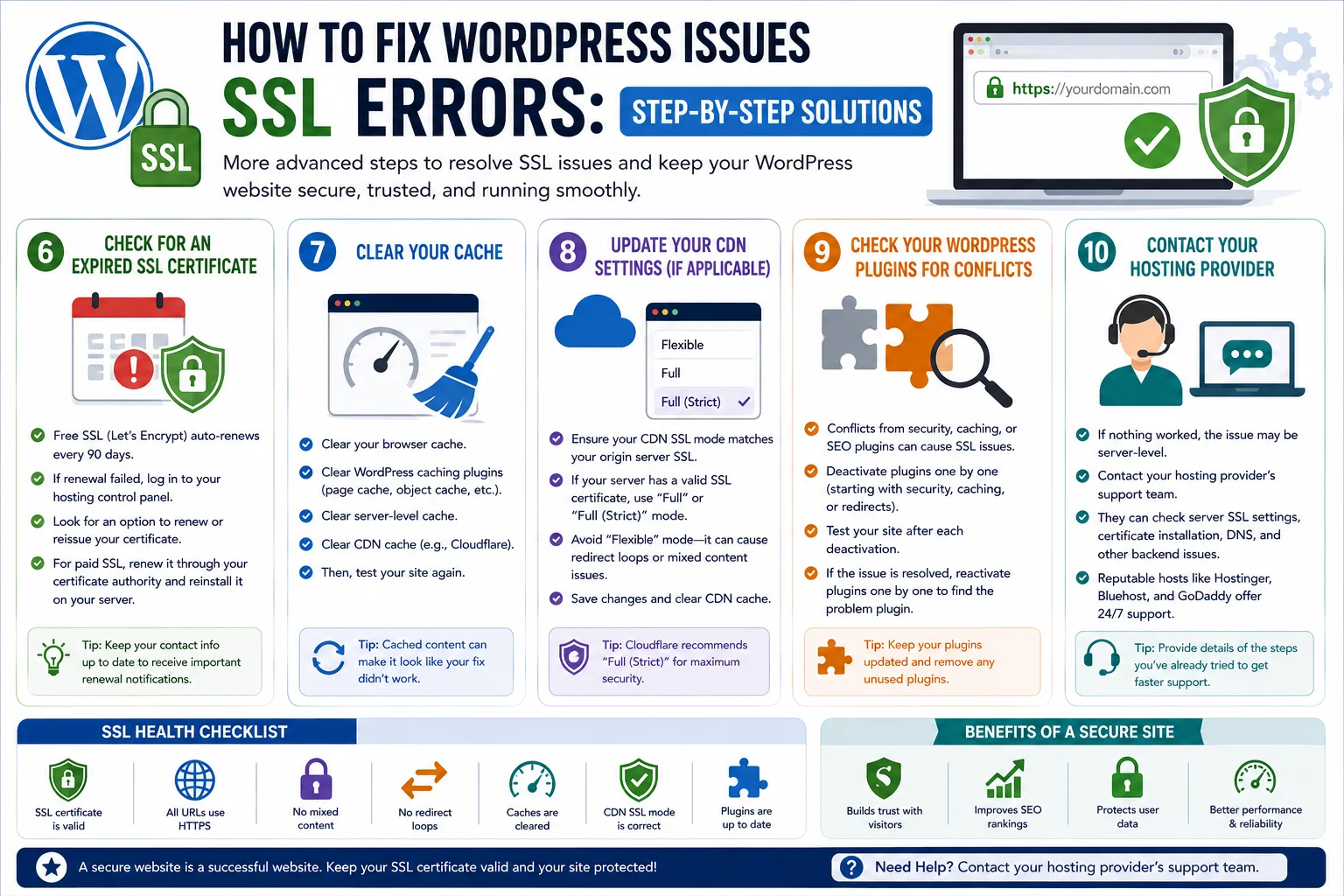
If your SSL certificate has expired, the fix depends on how your certificate was originally issued. If you’re using a free certificate from your hosting provider (such as one issued through Let’s Encrypt), these are typically set to renew automatically every 90 days. If automatic renewal has failed, log into your hosting control panel and look for an option to manually renew or reissue your certificate.
If you purchased a paid SSL certificate through a third-party certificate authority, you’ll need to renew it through that provider directly and then reinstall the renewed certificate on your server, which your hosting provider can often assist with.
Step 7: Clear Your Cache
After making any SSL-related changes, it’s essential to clear multiple layers of cache before testing whether the issue is resolved. This includes your browser cache, any caching plugins installed on your WordPress site (such as page caching or object caching tools), and any server-level or CDN caching if you’re using a service like Cloudflare. Failing to clear these caches can make it look like your fix didn’t work, when in reality you’re just viewing an outdated, cached version of your site.
Step 8: Update Your CDN Settings (If Applicable)
If you’re using a content delivery network like Cloudflare to speed up your website, SSL errors can sometimes stem from a mismatch between your CDN’s SSL settings and your origin server’s SSL configuration. Cloudflare, for example, offers several SSL modes, including “Flexible,” “Full,” and “Full (Strict).”
If your origin server has a valid SSL certificate installed, you should generally use “Full” or “Full (Strict)” mode rather than “Flexible,” since Flexible mode can sometimes cause redirect loops or mixed content issues when combined with a WordPress-level HTTPS redirect. Reviewing and adjusting these settings within your CDN dashboard can resolve many SSL conflicts that occur specifically on CDN-enabled websites.
Step 9: Check Your WordPress Plugins for Conflicts
Occasionally, SSL errors are caused by conflicts between plugins—particularly security plugins, caching plugins, or SEO plugins that manage redirects or URL structures. If you’ve tried the steps above and are still experiencing issues, try temporarily deactivating your plugins one by one (starting with anything related to security, caching, or redirects) to see if the error resolves. If deactivating a specific plugin fixes the issue, you’ll know that plugin is the source of the conflict, and you can look for an updated version, an alternative plugin, or reach out to the plugin developer for support.
Step 10: Contact Your Hosting Provider
If you’ve worked through all of the steps above and you’re still experiencing SSL errors, it may be time to reach out to your hosting provider’s support team. Server-level SSL configuration issues, certificate installation problems, and DNS-related conflicts can sometimes require access to server settings that aren’t available through your WordPress dashboard. Most reputable hosting providers, including Hostinger, Bluehost, and GoDaddy, offer 24/7 support specifically to help troubleshoot these kinds of technical issues.
Common Browser SSL Error Messages in WordPress
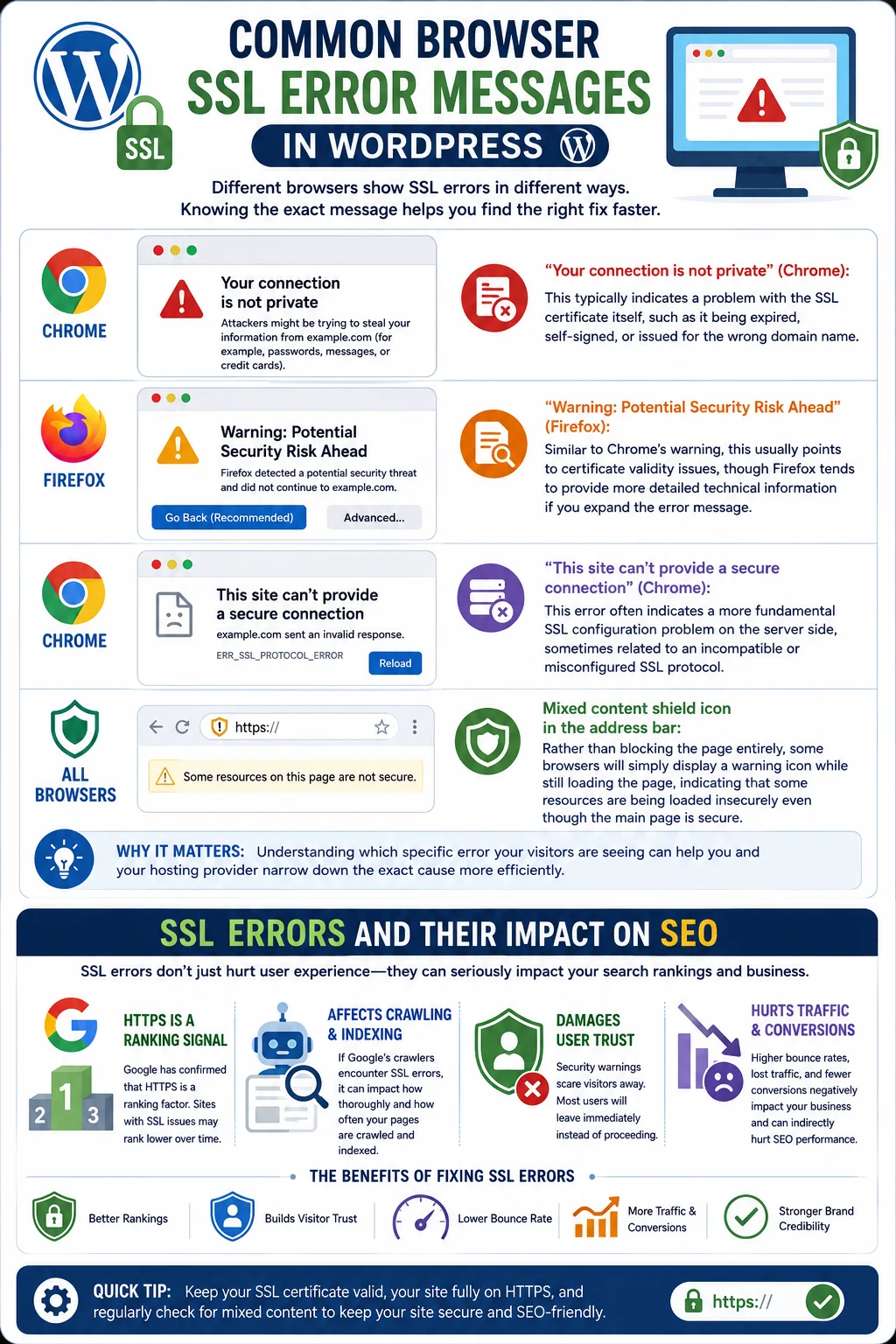
“Your connection is not private” (Chrome): This typically indicates a problem with the SSL certificate itself, such as it being expired, self-signed, or issued for the wrong domain name.
“Warning: Potential Security Risk Ahead” (Firefox): Similar to Chrome’s warning, this usually points to certificate validity issues, though Firefox tends to provide more detailed technical information if you expand the error message.
“This site can’t provide a secure connection” (Chrome): This error often indicates a more fundamental SSL configuration problem on the server side, sometimes related to an incompatible or misconfigured SSL protocol.
Mixed content shield icon in the address bar: Rather than blocking the page entirely, some browsers will simply display a warning icon while still loading the page, indicating that some resources are being loaded insecurely even though the main page is secure.
Understanding which specific error your visitors are seeing can help you and your hosting provider narrow down the exact cause more efficiently.
SSL Errors and Their Impact on SEO
It’s worth emphasizing why resolving SSL errors quickly matters beyond just user experience. Since Google has confirmed that HTTPS is a ranking signal, sites with unresolved SSL issues may see a negative impact on their search rankings over time. Additionally, if Google’s crawlers encounter SSL errors while trying to access your site, it can affect how thoroughly and how often your pages get crawled and indexed.
Beyond direct ranking impacts, SSL errors can severely damage user trust. When visitors see a security warning, the vast majority will immediately leave the site rather than proceed, resulting in lost traffic, lost conversions, and a higher bounce rate—all of which can indirectly harm your SEO performance over time as well.
When to Consider Professional Help
While many WordPress SSL errors can be resolved using the steps outlined in this guide, some situations may call for professional assistance. If you’re not comfortable editing files like .htaccess, working with FTP, or navigating your hosting control panel’s advanced settings, it may be worth reaching out to a WordPress developer or your hosting provider’s technical support team.
This is particularly true for more complex scenarios, such as sites using custom server configurations, multiple domains or subdomains, complex CDN setups, or e-commerce platforms where SSL issues could directly impact payment processing and customer trust. In these cases, the cost of professional help is often well worth it to avoid extended downtime or security risks.
Frequently Asked Questions
Why does my WordPress site show a “Not Secure” warning even though I installed an SSL certificate? This usually happens because your WordPress site URL settings are still configured to use HTTP, or because there are mixed content issues where some resources on the page are still loading over HTTP. Reviewing your Settings > General page and checking for mixed content warnings is a good first step.
How long does it take for an SSL certificate to activate after installation? This varies by provider, but most SSL certificates activate within a few minutes to a few hours after installation. Some hosting providers may take up to 24 hours for full propagation across their systems.
Can I fix SSL errors without any technical or coding knowledge? Yes, in many cases. Most modern hosting providers offer one-click SSL activation, and many WordPress plugins can handle HTTPS redirects and mixed content fixes without requiring you to edit any code directly.
Will fixing my SSL errors improve my website’s search rankings? While SSL alone isn’t the only ranking factor, having a properly secured, error-free HTTPS site removes a potential obstacle to good search performance and improves user trust, both of which can indirectly support better rankings over time.
What should I do if my SSL certificate keeps expiring unexpectedly? This usually indicates that automatic renewal isn’t functioning correctly. Check your hosting control panel’s SSL settings to confirm auto-renewal is enabled, and if the problem persists, contact your hosting provider’s support team for assistance.
Final Thoughts on Fixing WordPress SSL Errors
Learning how to fix WordPress issues SSL errors doesn’t have to be overwhelming, even if you’re not particularly technical. By systematically working through the steps outlined in this guide—starting with confirming your certificate is properly installed, updating your WordPress URL settings, resolving mixed content issues, and setting up proper HTTPS redirects—you can resolve the vast majority of common SSL problems on your own.
For more complex or persistent issues, don’t hesitate to reach out to your hosting provider’s support team, who can often quickly identify and resolve server-level configuration problems that aren’t accessible through the WordPress dashboard alone. Keeping your SSL certificate valid, properly configured, and actively monitored is an ongoing responsibility, but it’s a crucial one for protecting your visitors, maintaining their trust, and supporting your website’s long-term SEO performance.