
WordPress Security Checklist 2026: A Complete Guide to Protecting Your Website
If you are looking for a reliable WordPress security checklist 2026 to follow, you have come to the right place. WordPress remains the most widely used content management system in the world, and that popularity comes with a downside: it is also one of the most frequently targeted platforms by hackers, bots, and automated attack scripts. Every year, thousands of WordPress websites are compromised, not because their owners were careless, but because they were unaware of a handful of essential security practices that could have prevented the breach entirely.
This guide walks through every major area of WordPress security relevant in 2026, from the fundamentals of login protection to advanced server-level hardening. Whether you run a personal blog, a small business site, or a full online store, this checklist will help you close the most common security gaps and build a website that is far more resistant to attack.
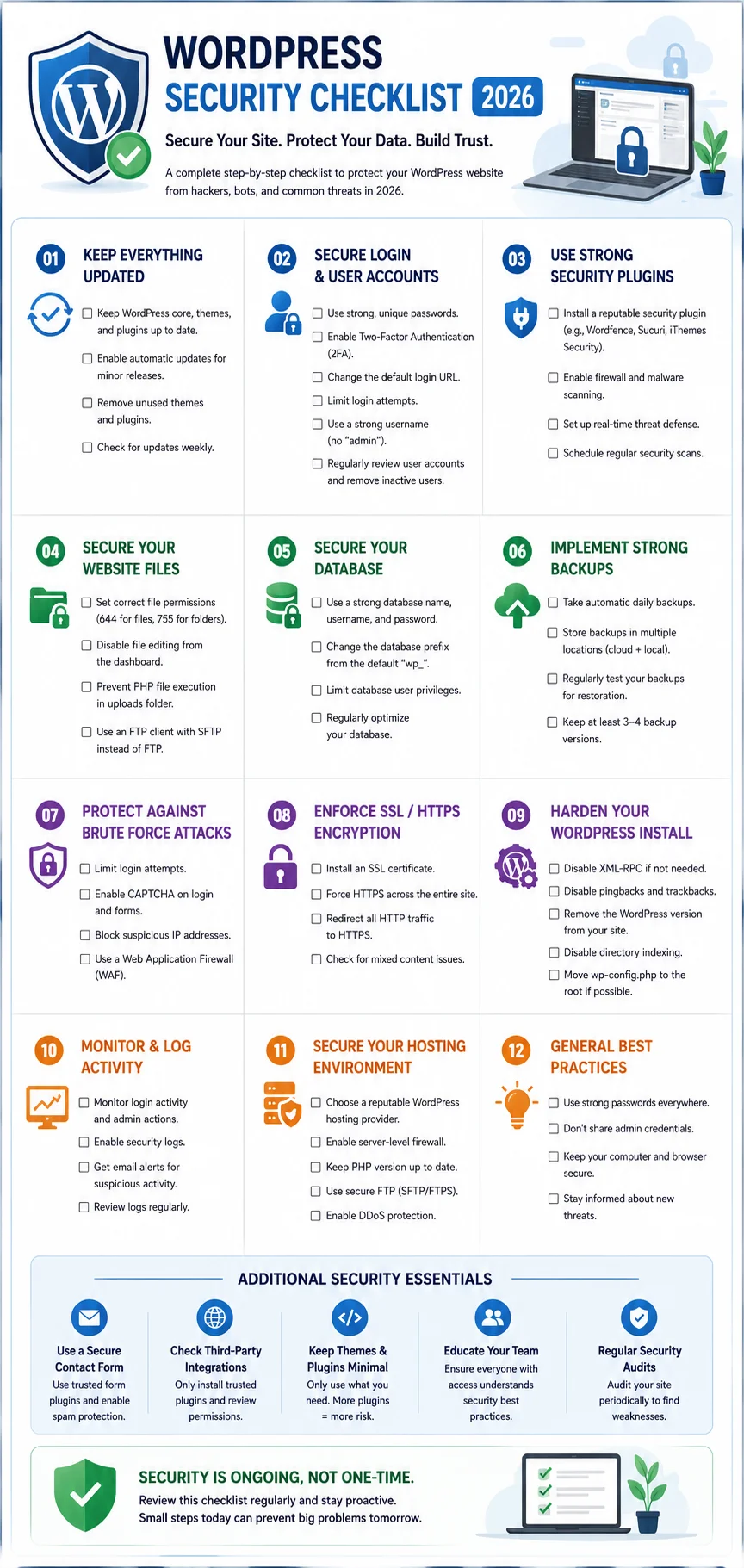
Security is not a single setting you toggle once and forget about. It is a combination of habits, tools, and awareness that, taken together, dramatically reduce your exposure to the most common threats WordPress sites face. Some of the items in this checklist take only a few minutes to implement, while others involve an ongoing commitment, such as regularly reviewing user accounts or staying current with software updates. Treat this guide as a working reference you can return to periodically, rather than a one-time task to complete and never revisit, since new threats and best practices continue to emerge as the WordPress ecosystem evolves.
Why WordPress Security Deserves Your Attention
Before working through the checklist itself, it is worth understanding why security matters so much for a WordPress site specifically.
The Scale of the Threat
Because WordPress powers such a large share of websites globally, it is an attractive target for attackers who write automated scripts designed to scan the internet for vulnerable installations. These scripts do not target you personally; they simply look for known weaknesses, such as outdated plugins, weak passwords, or exposed configuration files, and exploit them wherever they find them. This means that even a small, low-traffic website can be attacked, often within days of going live, simply because it uses recognizable WordPress file structures and login pages.
The Real Cost of a Breach
A compromised website can suffer in several ways. Malicious code can be injected to redirect visitors to spam or phishing sites, damaging your reputation and potentially getting your domain blacklisted by browsers and search engines. Hackers can steal customer data, including names, emails, and payment information on e-commerce sites, exposing you to legal and financial liability. In more severe cases, your server resources can be hijacked entirely for cryptocurrency mining or as part of a botnet, without any visible sign to a casual visitor. Recovering from a breach often costs far more time and money than the preventive measures that would have stopped it in the first place.
Search Engines and Security
Search engines actively scan for malware and flag compromised sites with warnings that can devastate your traffic overnight. Even after cleaning up an infection, it can take weeks to fully restore your search rankings and rebuild trust with both search engines and visitors. Treating security as a proactive priority, rather than something to address after an incident, is far more effective and considerably less stressful.
1. Keep WordPress Core, Themes, and Plugins Updated
The single most important item on any WordPress security checklist is staying current with updates. The majority of successful WordPress hacks exploit known vulnerabilities in outdated core software, themes, or plugins, vulnerabilities that have already been patched by the developers but never applied by the site owner.
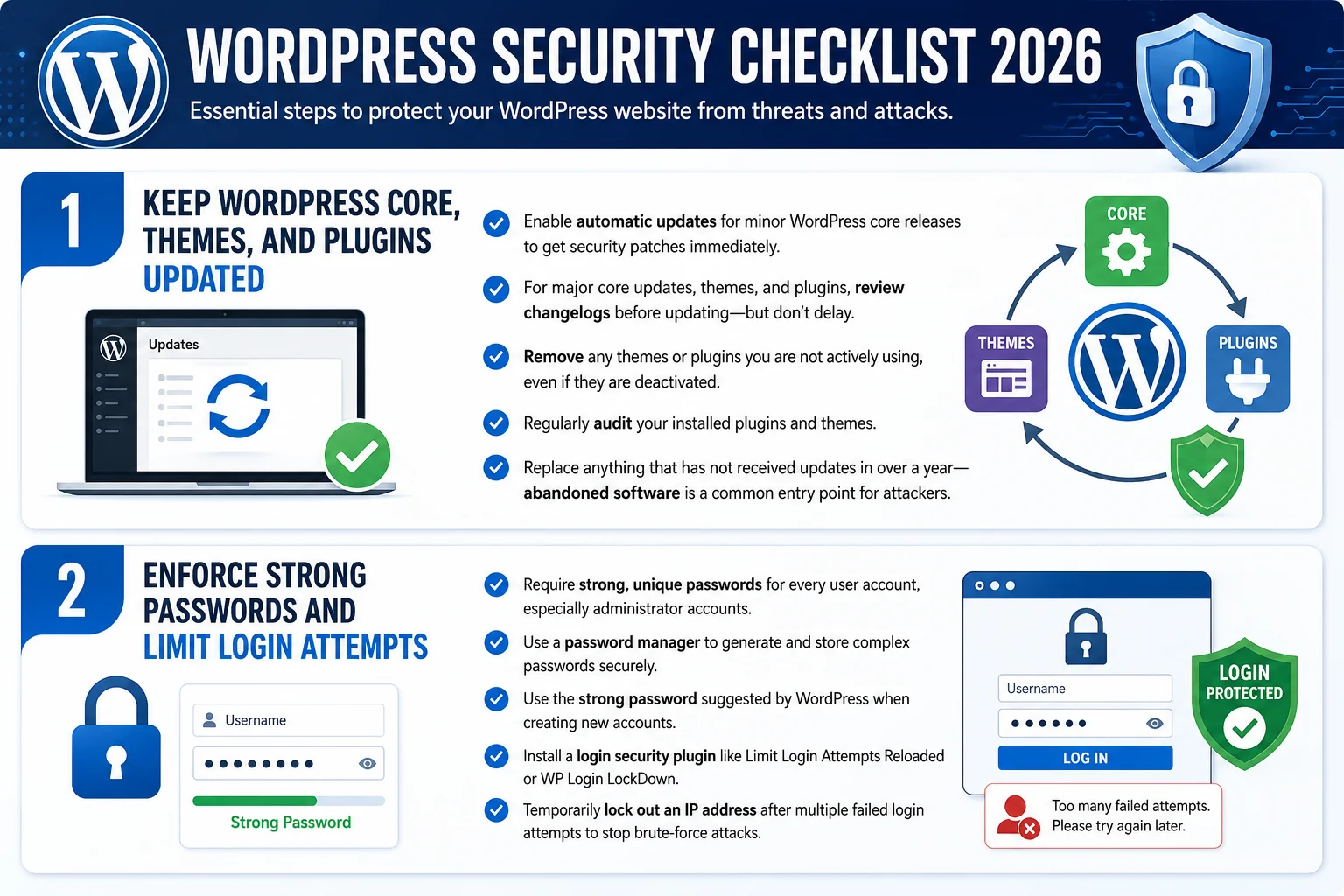
Enable automatic updates for minor WordPress core releases, which typically include security patches without introducing breaking changes. For major core updates, themes, and plugins, review changelogs before updating, but do not delay indefinitely, since attackers often move quickly once a vulnerability becomes public knowledge.
Remove any themes or plugins you are not actively using, even if they are deactivated, since inactive software can still be exploited if it remains on your server. Regularly audit your installed plugins and themes, and replace anything that has not received updates in over a year, as abandoned software is a common entry point for attackers.
2. Enforce Strong Passwords and Limit Login Attempts
Weak, reused, or easily guessed passwords remain one of the most common ways attackers gain unauthorized access to WordPress sites. A brute-force attack, in which automated software rapidly tries thousands of password combinations, can succeed within hours against a weak password if left unprotected.
Require strong, unique passwords for every user account on your site, particularly administrator accounts. Use a password manager to generate and store complex passwords rather than relying on memorable but predictable combinations. WordPress itself will suggest a strong password when creating new accounts, and this suggestion should be used rather than overridden.
Install a login security plugin such as Limit Login Attempts Reloaded or WP Login LockDown, which temporarily locks out an IP address after a set number of failed login attempts. This single step effectively neutralizes most automated brute-force attacks, since the attacking script is blocked long before it can cycle through enough password combinations to succeed.
3. Enable Two-Factor Authentication
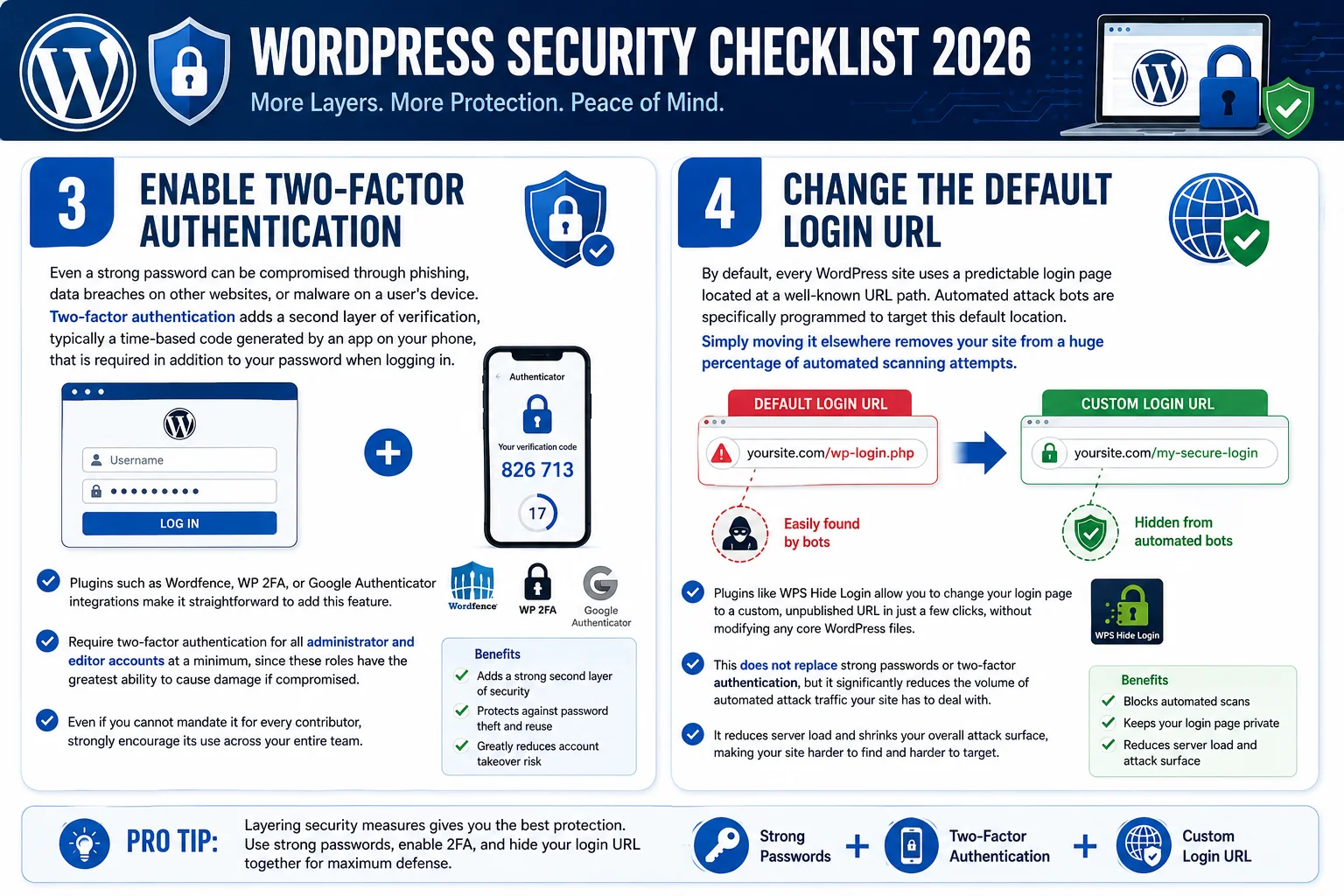
Even a strong password can be compromised through phishing, data breaches on other websites, or malware on a user’s device. Two-factor authentication adds a second layer of verification, typically a time-based code generated by an app on your phone, that is required in addition to your password when logging in.
Plugins such as Wordfence, WP 2FA, or Google Authenticator integrations make it straightforward to add this feature to your WordPress login process. Require two-factor authentication for all administrator and editor accounts at a minimum, since these roles have the greatest ability to cause damage if compromised. Even if you cannot mandate it for every contributor, strongly encourage its use across your entire team.
4. Change the Default Login URL
By default, every WordPress site uses a predictable login page located at a well-known URL path. Automated attack bots are specifically programmed to target this default location, and simply moving it elsewhere removes your site from a huge percentage of automated scanning attempts without requiring any advanced technical skill.
Plugins like WPS Hide Login allow you to change your login page to a custom, unpublished URL in just a few clicks, without modifying any core WordPress files. This does not replace strong passwords or two-factor authentication, but it significantly reduces the volume of automated attack traffic your site has to deal with, which in turn reduces server load and the overall attack surface.
5. Install a Reputable Security Plugin
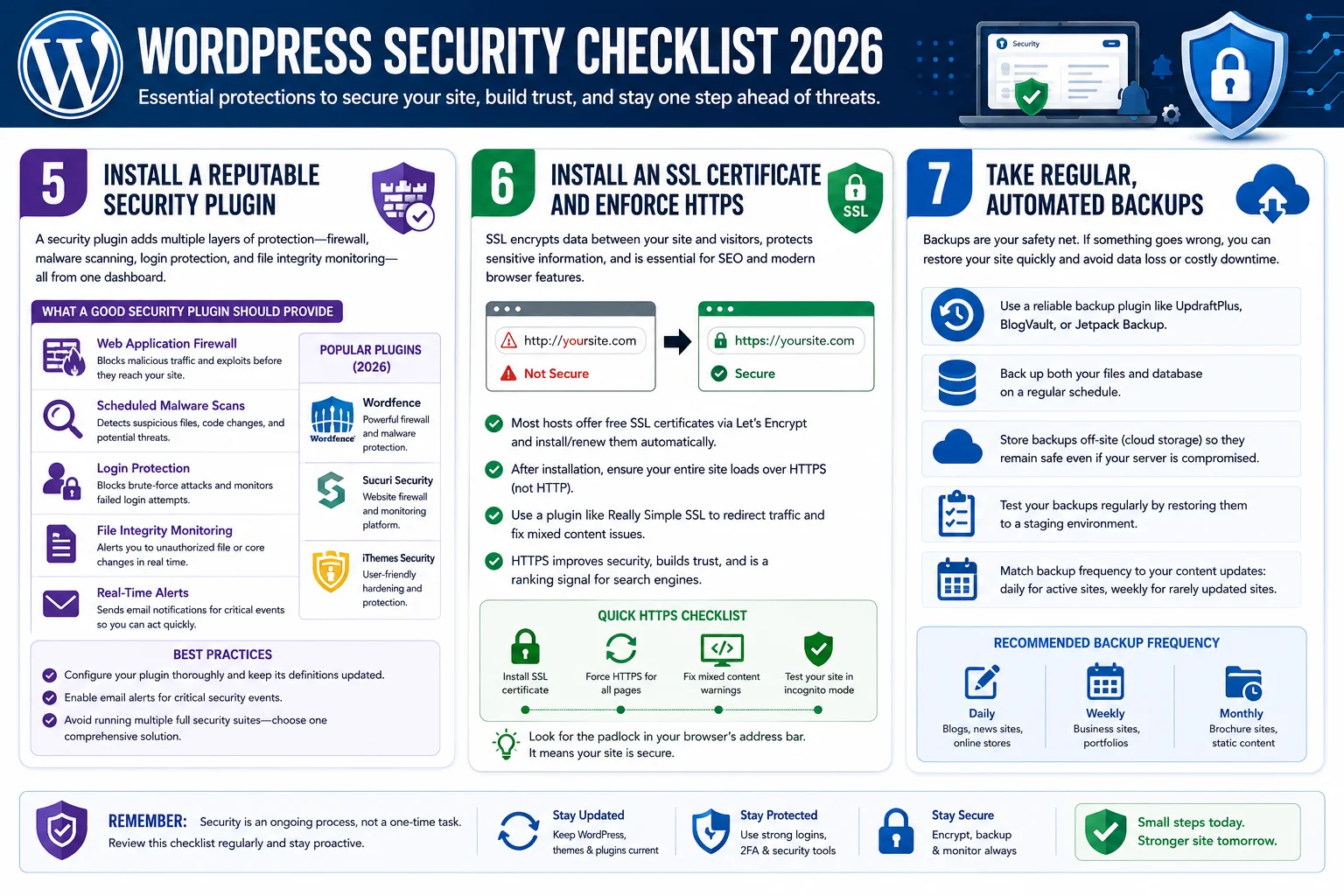
A dedicated WordPress security plugin bundles together many essential protections, including firewall rules, malware scanning, login protection, and file integrity monitoring, into a single manageable dashboard. Popular options for 2026 include Wordfence, Sucuri Security, and iThemes Security, each offering slightly different strengths.
A good security plugin should provide a web application firewall that filters malicious traffic before it reaches your WordPress installation, scheduled malware scans that alert you to suspicious files or code changes, and real-time alerts for failed login attempts or file modifications. Configure your chosen plugin to send email notifications for critical events so you can respond quickly if something suspicious occurs, rather than discovering a problem weeks later.
6. Install an SSL Certificate and Enforce HTTPS
An SSL certificate encrypts the data transmitted between your website and its visitors, protecting sensitive information such as login credentials and payment details from being intercepted. Beyond the security benefit, HTTPS is also a confirmed ranking signal for search engines and is required for most modern browser features and payment processing systems.
Most hosting providers now offer free SSL certificates through Let’s Encrypt, and many managed WordPress hosts install and renew them automatically. After installing your certificate, make sure your entire site consistently loads over HTTPS rather than HTTP, using a plugin like Really Simple SSL to handle the transition and fix any mixed content warnings, which occur when some resources on a page still load over the unencrypted connection.
7. Take Regular, Automated Backups
Even with strong preventive measures in place, no security strategy is completely foolproof. A reliable, automated backup system ensures that if the worst happens, you can restore your website quickly rather than losing your content permanently or paying a ransom to attackers who have taken your site hostage.
Use a backup plugin such as UpdraftPlus, BlogVault, or Jetpack Backup to schedule automatic backups of both your files and your database. Store backups in a location separate from your hosting server, such as cloud storage, so that if your hosting account itself is compromised, your backups remain safe and accessible.
8. Harden File and Folder Permissions
Incorrect file permissions can leave your WordPress installation more vulnerable than necessary, potentially allowing unauthorized users or malicious scripts to modify critical files. WordPress recommends specific permission settings for different file types: directories should generally be set to 755, while individual files should be set to 644, with the wp-config.php file, which contains sensitive database credentials, set even more restrictively at 600 where your hosting environment supports it.
Most hosting control panels provide a file manager that allows you to review and adjust these permissions directly, or you can use an FTP client with permission-editing capabilities. If you are uncertain about making these changes yourself, your hosting provider’s support team can typically assist or confirm that your current settings already follow best practices.
9. Disable File Editing Through the WordPress Dashboard
By default, WordPress allows administrators to edit theme and plugin files directly through the dashboard’s built-in code editor. While convenient, this feature becomes a serious liability if an attacker gains administrator access, since it provides a direct, easy method to inject malicious code without needing separate server access.
Disable this feature by adding a simple line of code to your wp-config.php file, which removes the file editing option from the dashboard entirely. Legitimate code changes should be made through a proper development workflow involving FTP, a staging environment, or a code repository, rather than through the live dashboard editor, which also improves your overall change management practices.
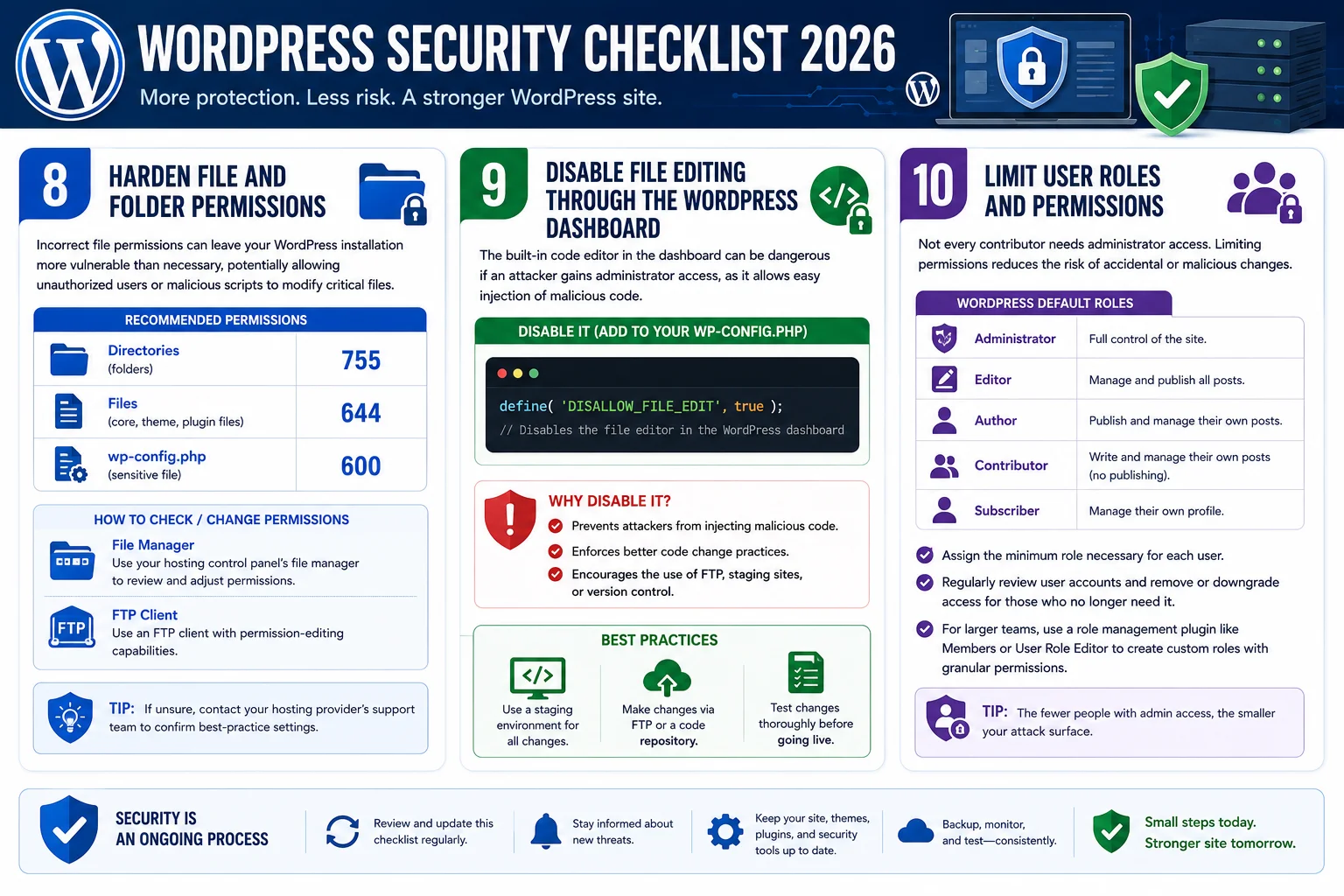
10. Limit User Roles and Permissions
Not every person who contributes to your website needs full administrator access. WordPress includes a built-in role system, including Administrator, Editor, Author, Contributor, and Subscriber, each with progressively fewer capabilities.
Assign the minimum role necessary for each user to perform their job. A guest blogger, for example, typically only needs Contributor or Author access, not full Administrator rights. Regularly review your list of user accounts and remove or downgrade access for anyone who no longer needs it, such as former employees or freelancers whose projects have ended.
For larger teams, consider using a role management plugin like Members or User Role Editor to create more granular custom roles tailored to your specific workflow, further limiting what each person can access or modify.
11. Secure the wp-config.php File
The wp-config.php file contains some of the most sensitive information on your entire WordPress installation, including your database credentials and security keys. Protecting this file specifically is a critical part of any WordPress security checklist.
Consider moving the wp-config.php file one directory above your public web root, a location WordPress will still automatically detect, but which is not directly accessible through a web browser. Additionally, ensure your security keys and salts, which are used to encrypt session data and cookies, are unique and randomly generated rather than left as default placeholder values. The WordPress.org secret key generator can produce a fresh, unique set of these keys whenever needed.
12. Protect Against SQL Injection and Cross-Site Scripting
SQL injection and cross-site scripting, often abbreviated as XSS, are two of the most common attack techniques used against web applications generally, including WordPress sites. These attacks exploit poorly sanitized input fields, such as comment forms, search boxes, or contact forms, to inject malicious code or database commands.
The most effective defense against these attacks is a properly configured web application firewall, which most comprehensive security plugins include as a core feature. Additionally, keep all plugins that handle user input, such as contact form and comment plugins, updated to their latest versions, since developers regularly patch newly discovered input handling vulnerabilities. Avoid using poorly reviewed or abandoned plugins for any feature that accepts direct user input.
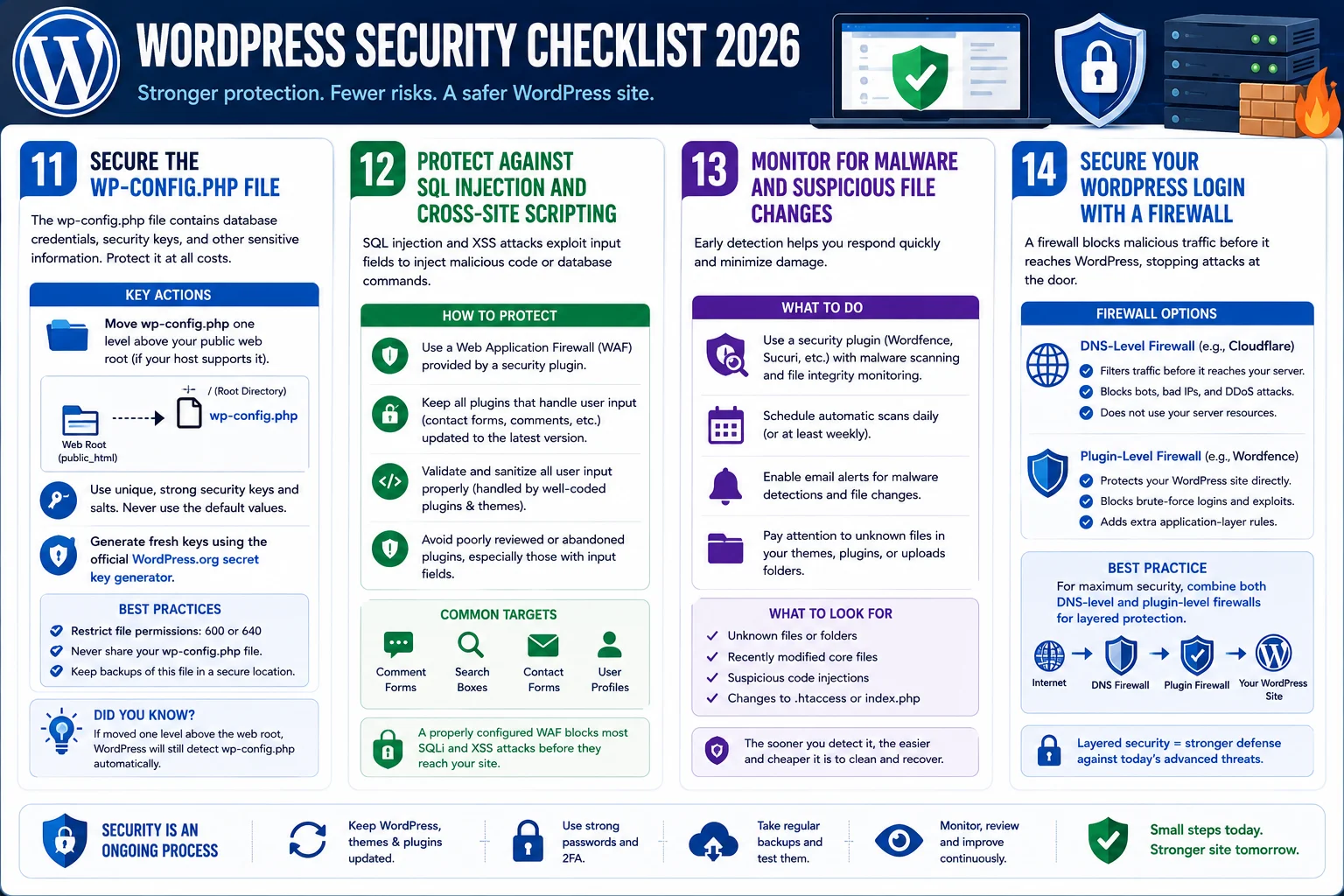
13. Monitor for Malware and Suspicious File Changes
Early detection is one of the most valuable tools in limiting the damage from a security incident. File integrity monitoring compares the current state of your website’s files against a known clean baseline and alerts you immediately if unexpected changes occur, which is often the first sign of a compromise.
Security plugins like Wordfence and Sucuri include built-in malware scanning and file change detection as part of their standard feature set. Schedule these scans to run automatically on a regular basis, and pay close attention to any alerts involving unfamiliar files appearing in your themes or plugins directory, since this is a common location attackers use to hide malicious code.
14. Secure Your WordPress Login with a Firewall
A web application firewall filters incoming traffic to your website before it ever reaches WordPress itself, blocking known malicious IP addresses, bot traffic, and common attack patterns. This can be implemented at the plugin level, as discussed earlier, or at the DNS level through a service like Cloudflare, which filters traffic before it even reaches your hosting server.
A DNS-level firewall offers an additional advantage: it can absorb and filter large volumes of malicious traffic, including distributed denial-of-service attacks, without consuming any of your own server’s resources. For sites that have experienced repeated attacks or that handle sensitive customer data, combining both a DNS-level firewall and a plugin-level firewall provides layered, redundant protection.
15. Choose Secure, Reputable Hosting
Your hosting provider plays a significant role in your overall security posture, since server-level configurations, patching schedules, and isolation between accounts on shared servers all affect your vulnerability to attack. A poorly maintained hosting environment can undermine even the most carefully configured WordPress security setup.
Choose a hosting provider with a strong security track record, one that applies server-level security patches promptly, offers malware scanning as part of their service, and provides clear account isolation on shared hosting plans to prevent a compromised neighboring site from affecting yours. Managed WordPress hosting providers often include additional security layers, such as automatic malware removal and proactive vulnerability patching, specifically tailored to the WordPress platform.
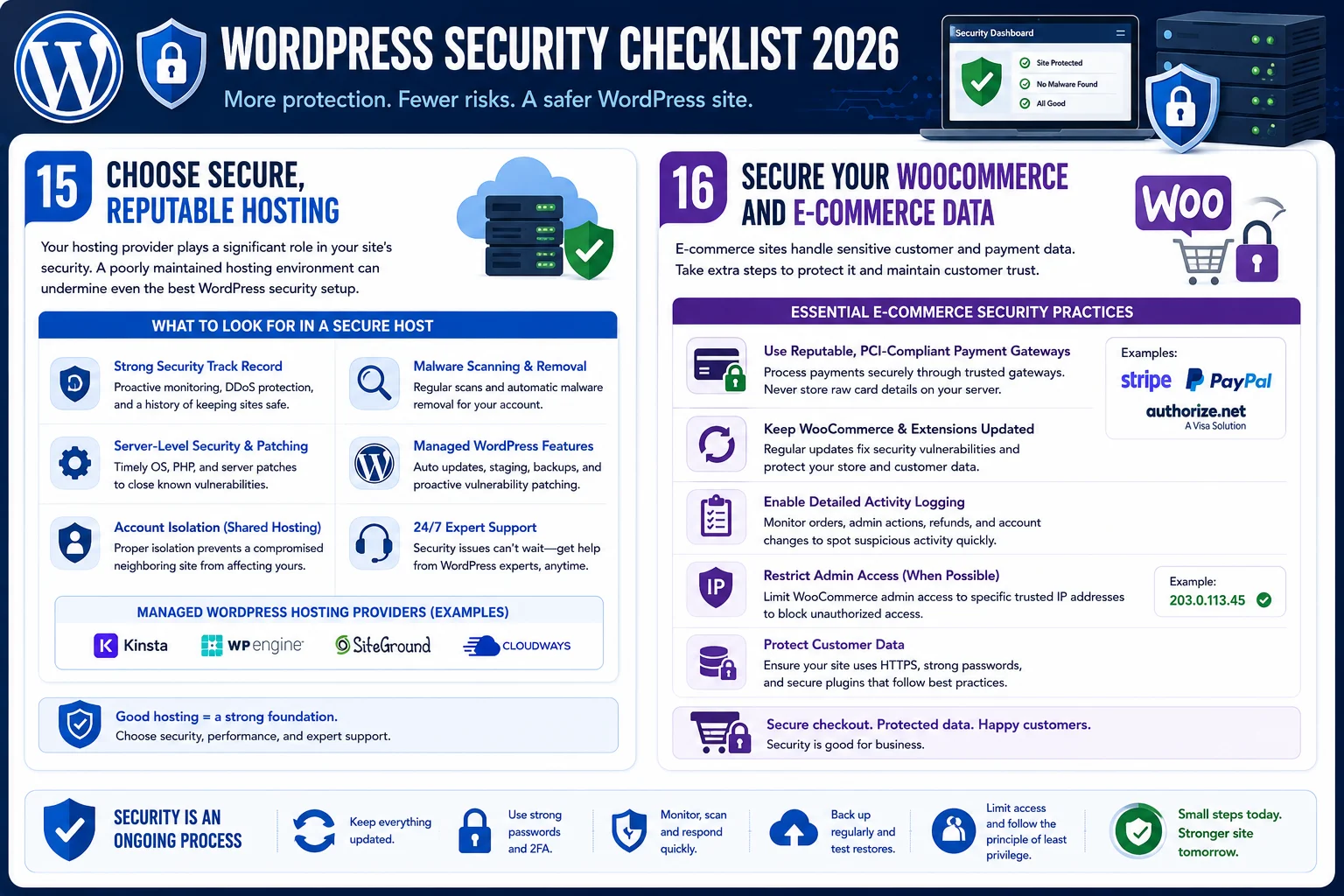
16. Secure Your WooCommerce and E-Commerce Data
If your WordPress site processes payments or stores customer information through WooCommerce or a similar plugin, additional security measures are necessary given the sensitivity of the data involved. Ensure your payment processing is handled through a reputable, PCI-compliant gateway rather than storing raw card details directly on your server.
Regularly update WooCommerce and all related extensions, since e-commerce plugins are frequent targets due to the financial data they handle. Enable detailed activity logging for order and account changes, and consider restricting administrative access to your store’s backend to specific trusted IP addresses if your team works from consistent locations, adding another meaningful barrier against unauthorized access.
17. Educate Every User With Access to Your Site
Technical safeguards alone cannot fully protect a website if the humans using it are not following good security practices. Phishing emails designed to steal login credentials remain one of the most effective attack methods precisely because they target people rather than software vulnerabilities.
Train everyone with access to your WordPress dashboard, including clients, freelancers, and team members, to recognize phishing attempts, avoid reusing passwords across different services, and report suspicious activity immediately rather than ignoring it. A brief, periodic reminder about these basics can meaningfully reduce your overall risk, particularly on sites with multiple contributors of varying technical experience.
18. Harden Your Server Environment Beyond WordPress Itself
WordPress security does not exist in isolation from the server it runs on. Even a perfectly configured WordPress installation can be undermined by weaknesses at the server level, so it is worth extending your checklist beyond the WordPress dashboard itself.
Disable directory browsing on your server so that visitors cannot view a raw list of files inside folders that lack an index file, which can otherwise expose sensitive file names and structures to anyone who stumbles across them. Most hosting environments allow this to be controlled through a simple configuration file, and many security plugins can add the necessary rule automatically.
Restrict access to sensitive files such as .htaccess, readme.html, and license.txt, which can reveal information about your WordPress version and configuration to anyone who requests them directly. While this information alone is not necessarily dangerous, it does make targeted attacks easier by helping an attacker fingerprint your exact setup before attempting an exploit.
If you have server-level access through a VPS or dedicated hosting plan, keep the underlying operating system, PHP version, and database software updated on the same disciplined schedule you apply to WordPress itself. Server software vulnerabilities are just as exploitable as WordPress vulnerabilities, and attackers do not particularly care which layer of your stack they compromise, as long as they gain access somewhere.
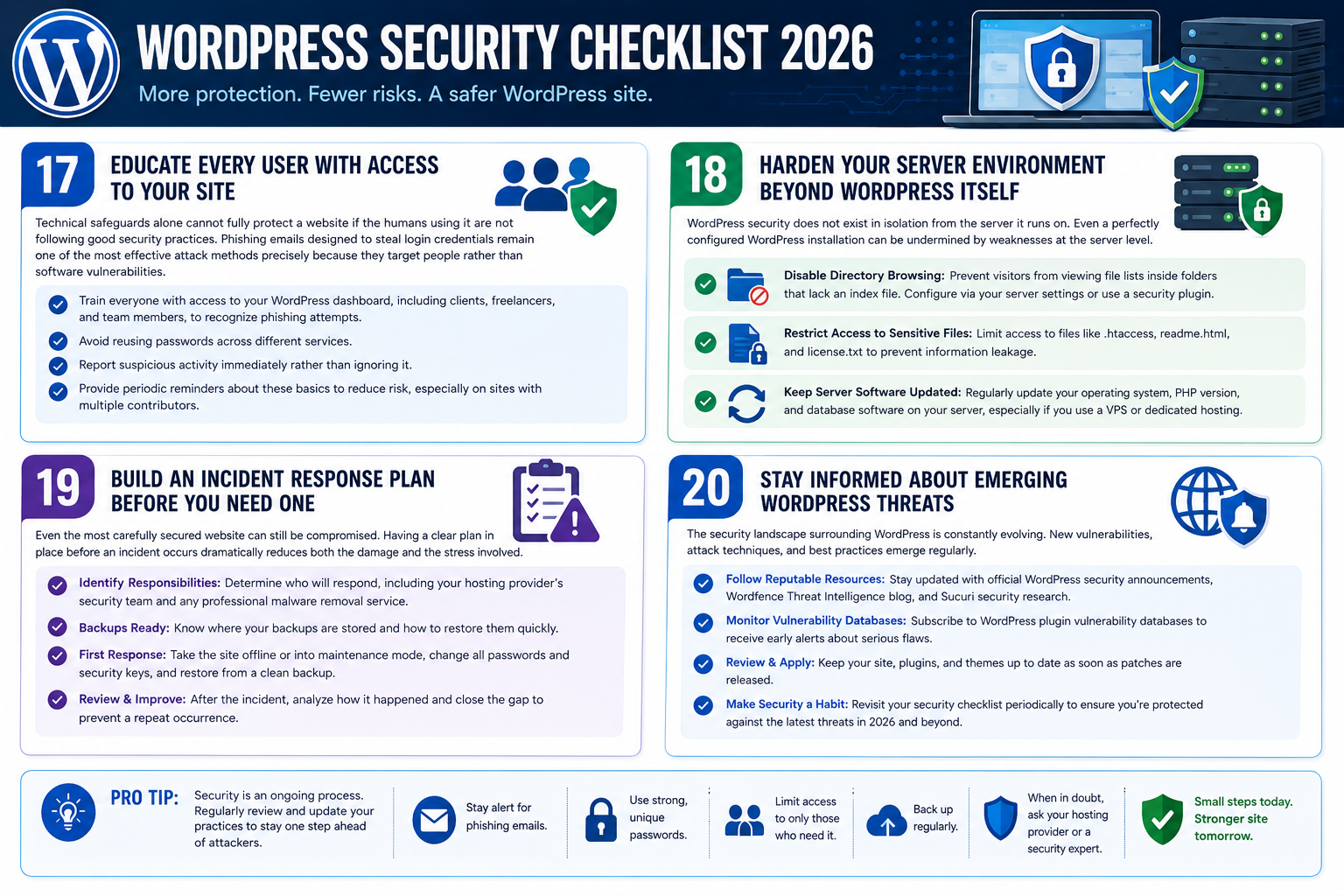
19. Build an Incident Response Plan Before You Need One
Even the most carefully secured website can still be compromised, whether through a newly discovered vulnerability, a sophisticated phishing attempt, or human error. Having a clear plan in place before an incident occurs dramatically reduces both the damage and the stress involved in responding to one.
Document exactly who is responsible for responding if a breach is suspected, including contact information for your hosting provider’s security team and, if applicable, a professional malware removal service. Keep a record of where your backups are stored and how to restore them quickly, since fumbling to locate backup files during an active incident wastes valuable time.
After resolving any incident, conduct a brief review to understand how the breach occurred and close that specific gap, whether it was an outdated plugin, a weak password, or a missing firewall rule. This step ensures the same vulnerability cannot be exploited a second time.
20. Stay Informed About Emerging WordPress Threats
The security landscape surrounding WordPress continues to evolve each year, with new vulnerabilities discovered in popular plugins, new attack techniques developed by malicious actors, and new best practices recommended by the security community. A checklist that was complete last year may be missing important protections against threats that have emerged more recently.
Follow reputable WordPress security resources, such as the official WordPress security team’s announcements, the Wordfence Threat Intelligence blog, and Sucuri’s security research, to stay aware of newly disclosed vulnerabilities affecting plugins or themes you use. Subscribing to vulnerability databases that specifically track WordPress plugins can also provide early warning if something in your technology stack is found to have a serious flaw, often before an official patch is even released.
Treat security education as an ongoing responsibility rather than a task you complete once. A checklist followed diligently in 2026 will need periodic revisiting as new tools, threats, and best practices continue to develop.
A Practical WordPress Security Checklist for 2026
To bring everything together, here is a condensed, actionable checklist you can work through step by step:
- Update WordPress core, themes, and plugins regularly, and remove anything inactive or abandoned.
- Enforce strong, unique passwords across all user accounts.
- Install a login limiting plugin to block brute-force attempts.
- Enable two-factor authentication for administrator and editor accounts.
- Change your default login URL to a custom, unpublished path.
- Install and properly configure a comprehensive security plugin.
- Install an SSL certificate and enforce HTTPS site-wide.
- Schedule automatic, offsite backups and test them periodically.
- Set correct file and folder permissions, especially for wp-config.php.
- Disable the built-in file editor in the WordPress dashboard.
- Assign the minimum necessary user role to every account.
- Move or otherwise secure your wp-config.php file.
- Keep all input-handling plugins updated to prevent injection attacks.
- Enable regular malware scanning and file integrity monitoring.
- Add a firewall layer, ideally both at the DNS and plugin level.
- Choose a hosting provider with a strong, proven security track record.
- Apply extra safeguards for any e-commerce or payment data you handle.
- Train every user with website access on basic security awareness.
- Harden server-level settings, including directory browsing and sensitive file access.
- Build a documented incident response plan before you need it.
- Stay informed about newly disclosed vulnerabilities affecting your plugins and themes.
Working through this checklist methodically, rather than attempting every item simultaneously, allows you to verify each protection is working correctly before moving to the next, reducing the chance of configuration errors that could inadvertently create new vulnerabilities.
Common Mistakes That Undermine WordPress Security
Even security-conscious site owners sometimes make avoidable mistakes. Relying on a single security plugin without ever reviewing its scan reports or alerts provides a false sense of protection, since the tool is only useful if its findings are actually reviewed and acted upon. Delaying updates out of fear that they might break something is another common trap, since the security risk of remaining outdated typically outweighs the inconvenience of testing an update on a staging site first. Sharing login credentials between multiple people rather than creating individual accounts makes it impossible to track who made specific changes and complicates the process of revoking access when needed. Finally, assuming that a small or low-traffic website is not worth targeting is a dangerous misconception, since automated attacks target vulnerabilities indiscriminately rather than selectively targeting high-profile sites.
Conclusion
Following a thorough WordPress security checklist 2026 is not about achieving a perfect, unbreachable website, since no system connected to the internet can offer absolute guarantees. Instead, it is about substantially reducing your risk, catching problems early when they do occur, and ensuring you can recover quickly if something does go wrong. The measures outlined in this guide, from basic password hygiene to layered firewalls and regular backups, work together to create multiple overlapping barriers that make your website a far less attractive and far more difficult target.
Start with the fundamentals: updates, strong passwords, two-factor authentication, and backups, since these four items alone address the majority of successful WordPress attacks. From there, work through the remaining items on the checklist at a sustainable pace, treating security as an ongoing practice rather than a one-time setup task. A website that is consistently maintained with security in mind will remain far more resilient in 2026 and beyond than one that only addresses these issues after an incident has already occurred, protecting not just your data but the trust your visitors and customers place in your brand.
Frequently Asked Questions
How often should I update WordPress, themes, and plugins? Check for updates at least weekly, and apply security-related updates as soon as possible after testing them on a staging environment. Minor core updates can typically be automated safely.
Is a free security plugin good enough, or do I need a paid version? Free versions of plugins like Wordfence and Sucuri provide solid baseline protection, including firewall rules and malware scanning. Paid versions typically add real-time updates, priority scanning, and dedicated support, which are worth considering for business-critical or e-commerce sites.
How do I know if my WordPress site has already been hacked? Warning signs include unexpected redirects, unfamiliar admin accounts, a sudden drop in search traffic, browser warnings when visiting your site, or unfamiliar files appearing in your plugin or theme directories. A malware scan through a security plugin is the fastest way to confirm.
Do I really need two-factor authentication for a small website? Yes. Attack scripts do not distinguish between small and large websites, and two-factor authentication is one of the most effective, low-effort defenses against unauthorized access regardless of your site’s size or traffic level.
Can shared hosting ever be secure enough for a business website? Shared hosting can be reasonably secure if your provider maintains strong account isolation and prompt patching, but for business-critical sites handling sensitive data, managed WordPress hosting or a VPS with dedicated resources typically offers stronger overall security.
What should I do first if I suspect my site has been hacked? Put your site into maintenance mode or take it offline temporarily to prevent further damage or spread, then contact your hosting provider’s support team, since many hosts offer initial guidance or malware removal assistance. Change all passwords and security keys immediately, and restore from your most recent clean backup rather than trying to manually remove malicious code, which can be difficult to do thoroughly without specialized tools.
How many security plugins should I run at the same time? One comprehensive security plugin is generally sufficient and recommended. Running multiple full security suites simultaneously often leads to conflicts, duplicated firewall rules, and unnecessary server load, without providing meaningfully better protection than a single, well-configured solution.
Does moving my login URL actually make a meaningful difference? Yes, though it should be viewed as one layer among several rather than a standalone solution. Since a large share of automated attack traffic specifically targets the default login path, simply relocating it removes your site from the majority of untargeted, automated attack attempts, reducing both risk and server load from constant bot traffic.